Python)Windows)画像アニメーションファイル( GIF / APNG / AVIF / WebP / MP4 )作成アプリ。
今まで、GIFアニメ作成には、Webサイト「フォトコンバイン:GIFアニメーション画像作成ツール」や、Windowsアプリ「Giam」を使用していた。
どちらも使いづらい面があったので、シンプルかつ、その他のアニメーション対応ファイル形式も作成できるWindowsアプリをPythonで作成した。生成AI「Claude」使用。
作成できるアニメーション対応ファイル形式。
- GIF(GIFアニメ)
- APNG(アニメーションPNG)
- AVIF
- WebP
- MP4(動画)
| 形式 | 登場年 | 色数 | 圧縮方式 | アニメーション | 透過(アルファ) | ファイルサイズ | ブラウザ対応 | おすすめ用途 |
|---|---|---|---|---|---|---|---|---|
| GIF | 1987年 | 256色 | ロスレス(LZW) | ○ | ○(1色のみ) | 中 | 全ブラウザ | 汎用・SNS・レガシー環境 |
| APNG | 2008年 | フルカラー | ロスレス(zlib) | ○ | ○(半透明も可) | 大 | 全モダンブラウザ | フルカラー・透過アニメ |
| AVIF | 2019年 | フルカラー(HDR対応) | 非可逆/ロスレス選択可(AV1) | ○ | ○(半透明も可) | 最小級(WebPより小) | Chrome・Firefox・Safari(Edge一部) | 最高画質・最小サイズ(最新環境) |
| WebP | 2010年 | フルカラー | 非可逆/ロスレス選択可 | ○ | ○(半透明も可) | 最小級 | 全モダンブラウザ | 小サイズ優先・Web全般 |
| WebM | 2010年 | フルカラー | 非可逆(VP8/VP9/AV1) | ○(動画) | ○(アルファチャンネル) | 小 | 全モダンブラウザ(videoタグ) | 透過動画・Web動画配信 |
| MP4 | 2001年 | フルカラー | 非可逆(H.264/H.265) | ○(動画) | △(H.265のみ) | 小〜中 | 全ブラウザ(videoタグ) | 動画プレイヤー・高画質保存 |
| SVG | 1999年 | フルカラー(ベクター) | テキスト(XML) | ○(CSS/SMILアニメ) | ○ | 極小(図形・ロゴ向け) | 全ブラウザ | ロゴ・アイコン・図形アニメ |
| MNG | 2001年 | フルカラー | ロスレス(zlib) | ○ | ○ | 大 | ほぼ非対応(廃れた) | 現在はほぼ使われない |
■ アニメーションファイル作成結果ファイルサイズ
今回作成したツールで、アニメーションファイルを作成した結果のファイルサイズは以下。AVIFが圧倒的に小さい。GIFアニメは、最大256色しかサポートしていないので、サイズが大きい割に画質が落ちる。
- 元JPEG画像画素数:800x631ピクセル
- 元JPEG画像1枚のファイルサイズ:170KB前後
- 元JPEG画像枚数:11枚
- フレームレート:15
| 形式 | ファイルサイズ |
| GIF | 4.46MB |
| APNG | 9.83MB |
| AVIF | 243KB |
| WebP | 1.16MB |
| MP4 | 639KB |
■ はてなブログ対応
はてなブログでは、GIFアニメ以外は、正しくアニメ表示できない。
■ Pythonアプリ
- アプリのウインドウに、複数画像をドラッグ&ドロップする。
- フレームレートを1~30で指定できる。初期値は15。
- ループ設定:無限ループ。(MP4は対象外)
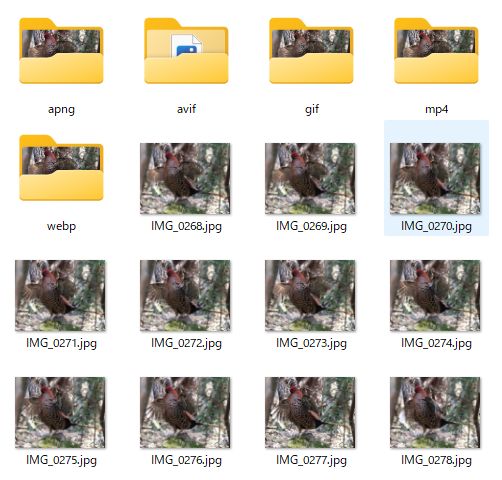
- 作成ボタンを押すと、それぞれのフォルダー( GIF / APNG / AVIF / WebP / MP4 )を作成し、その中にアニメーションファイルを作成する。
- アニメーションファイル名にフレームレートを入れる。

■ Pythonライブラリインストール
pip install pillow
pip install tkinterdnd2
pip install webp
pip install opencv-python
pip install pillow-avif-plugin
■ Pythonプログラムコード
"""
アニメーション作成ツール
JPEG画像をドラッグ&ドロップして GIF / APNG / AVIF / WebP / MP4 を生成します
"""
import os
import re
import tkinter as tk
from tkinter import ttk, messagebox
from PIL import Image
import tkinterdnd2 as dnd
# ─────────────── カラーパレット ───────────────
BG_DARK = "#1a1a2e"
BG_PANEL = "#16213e"
BG_DROP = "#0f3460"
ACCENT = "#e94560"
ACCENT2 = "#f5a623"
ACCENT3 = "#4ecdc4" # WebP 色
ACCENT4 = "#a29bfe" # MP4 色
ACCENT5 = "#55efc4" # APNG 色
ACCENT6 = "#fd79a8" # AVIF 色
TEXT_MAIN = "#eaeaea"
TEXT_SUB = "#8892a4"
TEXT_FILE = "#a8d8ea"
BORDER = "#2a3f5f"
# 出力形式の定義
FORMATS = {
"gif": {"label": "GIF アニメ", "ext": ".gif", "subdir": "gif", "color": ACCENT},
"apng": {"label": "APNG アニメ", "ext": ".png", "subdir": "apng", "color": ACCENT5},
"avif": {"label": "AVIF アニメ", "ext": ".avif", "subdir": "avif", "color": ACCENT6},
"webp": {"label": "WebP アニメ", "ext": ".webp", "subdir": "webp", "color": ACCENT3},
"mp4": {"label": "MP4 動画", "ext": ".mp4", "subdir": "mp4", "color": ACCENT4},
}
class AnimMakerApp(dnd.TkinterDnD.Tk):
def __init__(self):
super().__init__()
self.title("アニメーション作成ツール")
self.geometry("700x780")
self.resizable(False, False)
self.configure(bg=BG_DARK)
try:
self.iconbitmap("icon.ico")
except Exception:
pass
self.image_paths = []
self.fmt_var = tk.StringVar(value="gif")
self._build_ui()
# ──────────────────────────────────────────
# UI 構築
# ──────────────────────────────────────────
def _build_ui(self):
# ── タイトルヘッダー ──
header = tk.Frame(self, bg=BG_DARK)
header.pack(fill="x", padx=24, pady=(22, 4))
tk.Label(
header, text="🎞 アニメーション作成ツール",
font=("Yu Gothic UI", 18, "bold"),
bg=BG_DARK, fg=ACCENT
).pack(side="left")
tk.Label(
header, text="JPEG → GIF / APNG / AVIF / WebP / MP4",
font=("Yu Gothic UI", 10),
bg=BG_DARK, fg=TEXT_SUB
).pack(side="left", padx=(10, 0), pady=(6, 0))
ttk.Separator(self, orient="horizontal").pack(fill="x", padx=24, pady=(6, 14))
# ── ドロップゾーン ──
drop_outer = tk.Frame(self, bg=BORDER, bd=0)
drop_outer.pack(fill="x", padx=24, pady=(0, 16))
drop_outer_inner = tk.Frame(drop_outer, bg=BG_DROP, bd=0)
drop_outer_inner.pack(fill="both", padx=2, pady=2)
self.drop_label = tk.Label(
drop_outer_inner,
text="ここに JPEG ファイルをドラッグ&ドロップ\n(複数ファイル可)",
font=("Yu Gothic UI", 13),
bg=BG_DROP, fg=TEXT_SUB,
pady=26, cursor="hand2"
)
self.drop_label.pack(fill="x")
self.drop_label.drop_target_register(dnd.DND_FILES)
self.drop_label.dnd_bind("<<Drop>>", self._on_drop)
drop_outer_inner.drop_target_register(dnd.DND_FILES)
drop_outer_inner.dnd_bind("<<Drop>>", self._on_drop)
# ── ファイルリスト ──
list_frame = tk.Frame(self, bg=BG_PANEL, bd=0)
list_frame.pack(fill="both", expand=True, padx=24, pady=(0, 14))
list_header = tk.Frame(list_frame, bg=BG_PANEL)
list_header.pack(fill="x", padx=10, pady=(8, 4))
tk.Label(list_header, text="登録済みファイル",
font=("Yu Gothic UI", 10, "bold"),
bg=BG_PANEL, fg=TEXT_SUB).pack(side="left")
tk.Button(list_header, text="クリア",
font=("Yu Gothic UI", 9),
bg=BORDER, fg=TEXT_SUB, activebackground=ACCENT,
activeforeground="white", bd=0, padx=8, pady=2,
cursor="hand2", command=self._clear_list).pack(side="right")
lb_frame = tk.Frame(list_frame, bg=BG_PANEL)
lb_frame.pack(fill="both", expand=True, padx=10, pady=(0, 10))
sb = tk.Scrollbar(lb_frame, orient="vertical", bg=BORDER)
sb.pack(side="right", fill="y")
self.listbox = tk.Listbox(
lb_frame,
font=("Consolas", 10),
bg=BG_DARK, fg=TEXT_FILE,
selectbackground=ACCENT, selectforeground="white",
bd=0, highlightthickness=0,
activestyle="none",
yscrollcommand=sb.set
)
self.listbox.pack(fill="both", expand=True)
sb.config(command=self.listbox.yview)
order_frame = tk.Frame(list_frame, bg=BG_PANEL)
order_frame.pack(fill="x", padx=10, pady=(0, 10))
for text, cmd in [("▲ 上へ", self._move_up), ("▼ 下へ", self._move_down),
("✕ 削除", self._remove_selected)]:
tk.Button(order_frame, text=text,
font=("Yu Gothic UI", 9),
bg=BORDER, fg=TEXT_MAIN, activebackground=ACCENT,
activeforeground="white", bd=0, padx=10, pady=3,
cursor="hand2", command=cmd).pack(side="left", padx=(0, 6))
self.count_label = tk.Label(order_frame, text="0 件",
font=("Yu Gothic UI", 9),
bg=BG_PANEL, fg=TEXT_SUB)
self.count_label.pack(side="right", padx=4)
# ── 設定パネル ──
settings = tk.Frame(self, bg=BG_PANEL, bd=0)
settings.pack(fill="x", padx=24, pady=(0, 14))
tk.Label(settings, text="⚙ 設定",
font=("Yu Gothic UI", 10, "bold"),
bg=BG_PANEL, fg=TEXT_SUB).grid(
row=0, column=0, columnspan=6, sticky="w", padx=12, pady=(8, 6))
# フレームレート
tk.Label(settings, text="フレームレート(fps)",
font=("Yu Gothic UI", 10),
bg=BG_PANEL, fg=TEXT_MAIN).grid(row=1, column=0, sticky="w", padx=12, pady=6)
self.fps_var = tk.IntVar(value=15)
fps_frame = tk.Frame(settings, bg=BG_PANEL)
fps_frame.grid(row=1, column=1, sticky="w", padx=8)
tk.Button(fps_frame, text="−", font=("Yu Gothic UI", 11, "bold"),
bg=BORDER, fg=TEXT_MAIN, activebackground=ACCENT,
activeforeground="white", bd=0, width=2, cursor="hand2",
command=self._fps_dec).pack(side="left")
self.fps_entry = tk.Entry(fps_frame, textvariable=self.fps_var,
font=("Consolas", 12, "bold"),
bg=BG_DARK, fg=ACCENT2,
insertbackground=ACCENT2,
justify="center", width=4, bd=0,
highlightthickness=1, highlightbackground=BORDER,
highlightcolor=ACCENT)
self.fps_entry.pack(side="left", padx=4)
tk.Button(fps_frame, text="+", font=("Yu Gothic UI", 11, "bold"),
bg=BORDER, fg=TEXT_MAIN, activebackground=ACCENT,
activeforeground="white", bd=0, width=2, cursor="hand2",
command=self._fps_inc).pack(side="left")
tk.Label(fps_frame, text="(1 ~ 30)",
font=("Yu Gothic UI", 9),
bg=BG_PANEL, fg=TEXT_SUB).pack(side="left", padx=(8, 0))
# ループ設定
tk.Label(settings, text="ループ",
font=("Yu Gothic UI", 10),
bg=BG_PANEL, fg=TEXT_MAIN).grid(row=1, column=2, sticky="w", padx=(24, 8))
tk.Label(settings, text="∞ 無限ループ",
font=("Yu Gothic UI", 10),
bg=BG_PANEL, fg=ACCENT2).grid(row=1, column=3, sticky="w")
# ── 出力形式 ──
tk.Label(settings, text="出力形式",
font=("Yu Gothic UI", 10, "bold"),
bg=BG_PANEL, fg=TEXT_SUB).grid(
row=2, column=0, columnspan=6, sticky="w", padx=12, pady=(12, 4))
# 1行目:GIF / APNG / AVIF
fmt_frame1 = tk.Frame(settings, bg=BG_PANEL)
fmt_frame1.grid(row=3, column=0, columnspan=6, sticky="w", padx=12, pady=(0, 4))
fmt_defs1 = [
("gif", "🎞 GIF アニメ", ACCENT),
("apng", "🖼 APNG アニメ", ACCENT5),
("avif", "✨ AVIF アニメ", ACCENT6),
]
for val, label, color in fmt_defs1:
tk.Radiobutton(
fmt_frame1, text=label,
variable=self.fmt_var, value=val,
font=("Yu Gothic UI", 11),
bg=BG_PANEL, fg=color,
activebackground=BG_PANEL, activeforeground=color,
selectcolor=BG_DARK,
cursor="hand2",
command=self._on_fmt_change
).pack(side="left", padx=(0, 20))
# 2行目:WebP / MP4
fmt_frame2 = tk.Frame(settings, bg=BG_PANEL)
fmt_frame2.grid(row=4, column=0, columnspan=6, sticky="w", padx=12, pady=(0, 10))
fmt_defs2 = [
("webp", "🌐 WebP アニメ", ACCENT3),
("mp4", "🎬 MP4 動画", ACCENT4),
]
for val, label, color in fmt_defs2:
tk.Radiobutton(
fmt_frame2, text=label,
variable=self.fmt_var, value=val,
font=("Yu Gothic UI", 11),
bg=BG_PANEL, fg=color,
activebackground=BG_PANEL, activeforeground=color,
selectcolor=BG_DARK,
cursor="hand2",
command=self._on_fmt_change
).pack(side="left", padx=(0, 20))
settings.grid_columnconfigure(1, weight=1)
# ── ボタン行 ──
btn_row = tk.Frame(self, bg=BG_DARK)
btn_row.pack(fill="x", padx=24, pady=(0, 20))
self.make_btn = tk.Button(
btn_row,
text="🎞 GIF アニメ作成",
font=("Yu Gothic UI", 13, "bold"),
bg=ACCENT, fg="white",
activebackground="#c73652", activeforeground="white",
bd=0, padx=24, pady=10, cursor="hand2",
command=self._make_animation
)
self.make_btn.pack(side="left", expand=True, fill="x", padx=(0, 10))
tk.Button(
btn_row,
text="❓ ヘルプ",
font=("Yu Gothic UI", 11),
bg=BORDER, fg=TEXT_MAIN,
activebackground="#3a506b", activeforeground="white",
bd=0, padx=16, pady=10, cursor="hand2",
command=self._show_help
).pack(side="right")
# ── ステータスバー ──
self.status_var = tk.StringVar(value="JPEGファイルをドロップしてください")
tk.Label(
self, textvariable=self.status_var,
font=("Yu Gothic UI", 9),
bg=BG_PANEL, fg=TEXT_SUB,
anchor="w", padx=14, pady=6
).pack(fill="x", side="bottom")
# ──────────────────────────────────────────
# 形式変更時にボタンのラベル・色を更新
# ──────────────────────────────────────────
def _on_fmt_change(self):
fmt = self.fmt_var.get()
info = FORMATS[fmt]
icons = {"gif": "🎞", "apng": "🖼", "avif": "✨", "webp": "🌐", "mp4": "🎬"}
self.make_btn.config(
text=f"{icons[fmt]} {info['label']}作成",
bg=info["color"],
activebackground=info["color"]
)
# ──────────────────────────────────────────
# ドロップ処理
# ──────────────────────────────────────────
def _on_drop(self, event):
paths = self._parse_drop_data(event.data)
added = 0
for p in paths:
ext = os.path.splitext(p)[1].lower()
if ext in (".jpg", ".jpeg") and p not in self.image_paths:
self.image_paths.append(p)
self.listbox.insert("end", os.path.basename(p))
added += 1
self._update_status(f"{added} 件追加しました(合計 {len(self.image_paths)} 件)")
self._update_count()
def _parse_drop_data(self, raw: str) -> list:
result = []
curly = re.findall(r'\{([^}]+)\}', raw)
remainder = re.sub(r'\{[^}]+\}', '', raw).strip()
result.extend(curly)
if remainder:
result.extend(remainder.split())
return [p.strip() for p in result if p.strip()]
# ──────────────────────────────────────────
# リスト操作
# ──────────────────────────────────────────
def _clear_list(self):
self.image_paths.clear()
self.listbox.delete(0, "end")
self._update_status("リストをクリアしました")
self._update_count()
def _remove_selected(self):
sel = self.listbox.curselection()
if not sel:
return
idx = sel[0]
self.listbox.delete(idx)
del self.image_paths[idx]
self._update_count()
def _move_up(self):
sel = self.listbox.curselection()
if not sel or sel[0] == 0:
return
i = sel[0]
self.image_paths[i - 1], self.image_paths[i] = self.image_paths[i], self.image_paths[i - 1]
self._refresh_listbox(i - 1)
def _move_down(self):
sel = self.listbox.curselection()
if not sel or sel[0] >= len(self.image_paths) - 1:
return
i = sel[0]
self.image_paths[i + 1], self.image_paths[i] = self.image_paths[i], self.image_paths[i + 1]
self._refresh_listbox(i + 1)
def _refresh_listbox(self, select_idx=None):
self.listbox.delete(0, "end")
for p in self.image_paths:
self.listbox.insert("end", os.path.basename(p))
if select_idx is not None:
self.listbox.selection_set(select_idx)
self.listbox.see(select_idx)
def _update_count(self):
self.count_label.config(text=f"{len(self.image_paths)} 件")
# ──────────────────────────────────────────
# FPS 操作
# ──────────────────────────────────────────
def _fps_inc(self):
v = self.fps_var.get()
if v < 30:
self.fps_var.set(v + 1)
def _fps_dec(self):
v = self.fps_var.get()
if v > 1:
self.fps_var.set(v - 1)
def _get_fps(self) -> int:
try:
v = int(self.fps_entry.get())
return max(1, min(30, v))
except ValueError:
return 15
# ──────────────────────────────────────────
# アニメーション生成(共通エントリ)
# ──────────────────────────────────────────
def _make_animation(self):
if not self.image_paths:
messagebox.showwarning("ファイルなし", "JPEGファイルをドロップしてください。")
return
fmt = self.fmt_var.get()
fps = self._get_fps()
info = FORMATS[fmt]
first_path = self.image_paths[0]
parent_dir = os.path.dirname(first_path)
out_dir = os.path.join(parent_dir, info["subdir"])
os.makedirs(out_dir, exist_ok=True)
base_name = os.path.splitext(os.path.basename(first_path))[0]
out_name = f"{base_name}-{fps}{info['ext']}"
out_path = os.path.join(out_dir, out_name)
self._update_status(f"{info['label']} を生成中...")
self.update()
try:
if fmt == "gif":
self._save_gif(out_path, fps)
elif fmt == "apng":
self._save_apng(out_path, fps)
elif fmt == "avif":
self._save_avif(out_path, fps)
elif fmt == "webp":
self._save_webp(out_path, fps)
elif fmt == "mp4":
self._save_mp4(out_path, fps)
size_kb = os.path.getsize(out_path) // 1024
self._update_status(
f"✅ 完了: {out_name} "
f"({len(self.image_paths)} フレーム / {fps} fps / {size_kb} KB)"
)
messagebox.showinfo(
"完了",
f"{info['label']}を生成しました!\n\n"
f"保存先: {out_path}\n"
f"フレーム数: {len(self.image_paths)}\n"
f"フレームレート: {fps} fps\n"
f"ファイルサイズ: {size_kb} KB"
)
except Exception as e:
self._update_status(f"❌ エラー: {e}")
messagebox.showerror("エラー", f"{info['label']}の生成に失敗しました。\n\n{e}")
# ──────────────────────────────────────────
# GIF 保存
# ──────────────────────────────────────────
def _save_gif(self, out_path: str, fps: int):
duration_ms = int(1000 / fps)
frames = []
for p in self.image_paths:
img = Image.open(p).convert("RGB")
img_p = img.quantize(colors=256, method=Image.Quantize.MEDIANCUT)
frames.append(img_p)
frames[0].save(
out_path,
format="GIF",
save_all=True,
append_images=frames[1:],
duration=duration_ms,
loop=0,
optimize=True
)
# ──────────────────────────────────────────
# APNG 保存(フルカラー・ロスレス)
# ──────────────────────────────────────────
def _save_apng(self, out_path: str, fps: int):
duration_ms = int(1000 / fps)
frames = []
base_size = None
for p in self.image_paths:
img = Image.open(p).convert("RGBA")
if base_size is None:
base_size = img.size
elif img.size != base_size:
img = img.resize(base_size, Image.LANCZOS)
frames.append(img)
frames[0].save(
out_path,
format="PNG",
save_all=True,
append_images=frames[1:],
duration=duration_ms,
loop=0,
optimize=False
)
# ──────────────────────────────────────────
# AVIF アニメーション保存
# ──────────────────────────────────────────
def _save_avif(self, out_path: str, fps: int):
try:
import pillow_avif # noqa: F401
except ImportError:
raise RuntimeError(
"AVIF 出力には pillow-avif-plugin が必要です。\n"
"コマンドプロンプトで以下を実行してください:\n"
" pip install pillow-avif-plugin"
)
duration_ms = int(1000 / fps)
frames = []
base_size = None
for p in self.image_paths:
img = Image.open(p).convert("RGB")
if base_size is None:
base_size = img.size
elif img.size != base_size:
img = img.resize(base_size, Image.LANCZOS)
frames.append(img)
frames[0].save(
out_path,
format="AVIF",
save_all=True,
append_images=frames[1:],
duration=duration_ms,
loop=0,
quality=60 # 0(最高圧縮)〜100(最高品質)
)
# ──────────────────────────────────────────
# WebP アニメーション保存
# ──────────────────────────────────────────
def _save_webp(self, out_path: str, fps: int):
try:
import webp as webplib
except ImportError:
raise RuntimeError(
"WebP 出力には webp パッケージが必要です。\n"
"コマンドプロンプトで以下を実行してください:\n"
" pip install webp"
)
duration_ms = int(1000 / fps)
pil_frames = []
base_size = None
for p in self.image_paths:
img = Image.open(p).convert("RGB")
if base_size is None:
base_size = img.size
elif img.size != base_size:
img = img.resize(base_size, Image.LANCZOS)
pil_frames.append(img)
w, h = base_size
enc_opts = webplib.WebPAnimEncoderOptions.new()
enc_opts.loop_count = 0
encoder = webplib.WebPAnimEncoder.new(w, h, enc_opts)
config = webplib.WebPConfig.new(quality=85)
for i, img in enumerate(pil_frames):
pic = webplib.WebPPicture.from_pil(img)
encoder.encode_frame(pic, i * duration_ms, config)
anim_data = encoder.assemble(len(pil_frames) * duration_ms)
with open(out_path, "wb") as f:
f.write(bytes(anim_data.buffer()))
# ──────────────────────────────────────────
# MP4 保存
# ──────────────────────────────────────────
def _save_mp4(self, out_path: str, fps: int):
try:
import cv2
import numpy as np
except ImportError:
raise RuntimeError(
"MP4 出力には opencv-python が必要です。\n"
"コマンドプロンプトで以下を実行してください:\n"
" pip install opencv-python"
)
first = Image.open(self.image_paths[0]).convert("RGB")
w, h = first.size
nw = w - (w % 2)
nh = h - (h % 2)
fourcc = cv2.VideoWriter_fourcc(*"mp4v")
writer = cv2.VideoWriter(out_path, fourcc, fps, (nw, nh))
if not writer.isOpened():
raise RuntimeError("VideoWriter を開けませんでした。")
try:
for p in self.image_paths:
img = Image.open(p).convert("RGB")
if img.size != (nw, nh):
img = img.resize((nw, nh), Image.LANCZOS)
frame_bgr = cv2.cvtColor(np.array(img), cv2.COLOR_RGB2BGR)
writer.write(frame_bgr)
finally:
writer.release()
# ──────────────────────────────────────────
# ヘルプ
# ──────────────────────────────────────────
def _show_help(self):
win = tk.Toplevel(self)
win.title("ヘルプ")
win.geometry("560x600")
win.configure(bg=BG_DARK)
win.resizable(False, False)
win.grab_set()
tk.Label(win, text="📖 使い方",
font=("Yu Gothic UI", 16, "bold"),
bg=BG_DARK, fg=ACCENT).pack(anchor="w", padx=20, pady=(18, 8))
ttk.Separator(win, orient="horizontal").pack(fill="x", padx=20, pady=(0, 12))
help_text = """■ 基本的な手順
1. JPEGファイル(.jpg / .jpeg)をドロップゾーンに
ドラッグ&ドロップします。複数ファイル可。
2. 一覧の「▲ 上へ」「▼ 下へ」でフレーム順を変更、
「✕ 削除」で選択ファイルを除外できます。
3. フレームレート(1〜30 fps)を設定します。
例) 1 fps = 1フレーム1000ms(スライドショー向け)
15 fps = 1フレーム約67ms
30 fps = 1フレーム約33ms
4. 出力形式を選択します。
🎞 GIF アニメ … 汎用・256色制限あり。追加不要。
🖼 APNG アニメ … フルカラー・ロスレス。はてなブログ推奨。追加不要。
✨ AVIF アニメ … フルカラー・超高圧縮。最新形式。
※要 pip install pillow-avif-plugin
🌐 WebP アニメ … 高画質・小サイズ。
※要 pip install webp
🎬 MP4 動画 … 動画プレイヤーで再生可能。
※要 pip install opencv-python
5. 作成ボタンを押すと変換を開始します。
■ ファイル名のルール
「元の1つ目のJPEGファイル名-フレームレート.拡張子」
例)photo01.jpg で 15fps → photo01-15.gif
例)photo01.jpg で 15fps → photo01-15.png(APNG)
例)photo01.jpg で 15fps → photo01-15.avif(AVIF)
■ 出力先フォルダ
最初の JPEG と同フォルダ内に形式別サブフォルダを作成。
GIF → gif/ APNG → apng/ AVIF → avif/
WebP → webp/ MP4 → mp4/
■ ループ設定
GIF・APNG・AVIF・WebP は無限ループ、MP4 は 1 回再生。"""
text_widget = tk.Text(
win, font=("Yu Gothic UI", 10),
bg=BG_PANEL, fg=TEXT_MAIN,
bd=0, padx=14, pady=10,
wrap="word", relief="flat",
highlightthickness=0
)
text_widget.insert("1.0", help_text)
text_widget.config(state="disabled")
text_widget.pack(fill="both", expand=True, padx=20, pady=(0, 10))
tk.Button(win, text="閉じる",
font=("Yu Gothic UI", 10),
bg=ACCENT, fg="white",
activebackground="#c73652", activeforeground="white",
bd=0, padx=20, pady=6, cursor="hand2",
command=win.destroy).pack(pady=(0, 16))
# ──────────────────────────────────────────
def _update_status(self, msg: str):
self.status_var.set(msg)
self.update_idletasks()
# ──────────────────────────────────────────────
if __name__ == "__main__":
app = AnimMakerApp()
app.mainloop()