Python)Windows)画像一括トリミングアプリ作成。 ICCプロファイル維持。
以前に『画像一括(バッチ)トリミングなら「Ralpha Image Resizer」が便利。』という記事を書いた。

「Ralpha Image Resizer」は大きなサイズの画像のトリミングなどで使いづらい面があったので、PythonでWindowsアプリを作成。生成AI「Claude」使用。
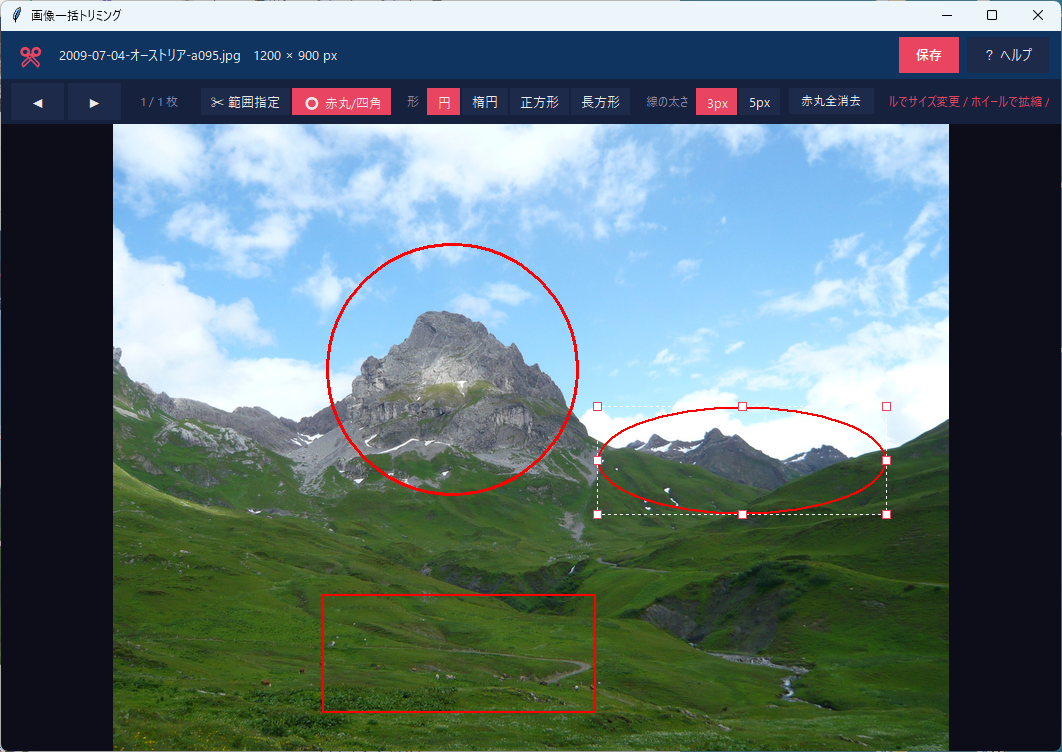
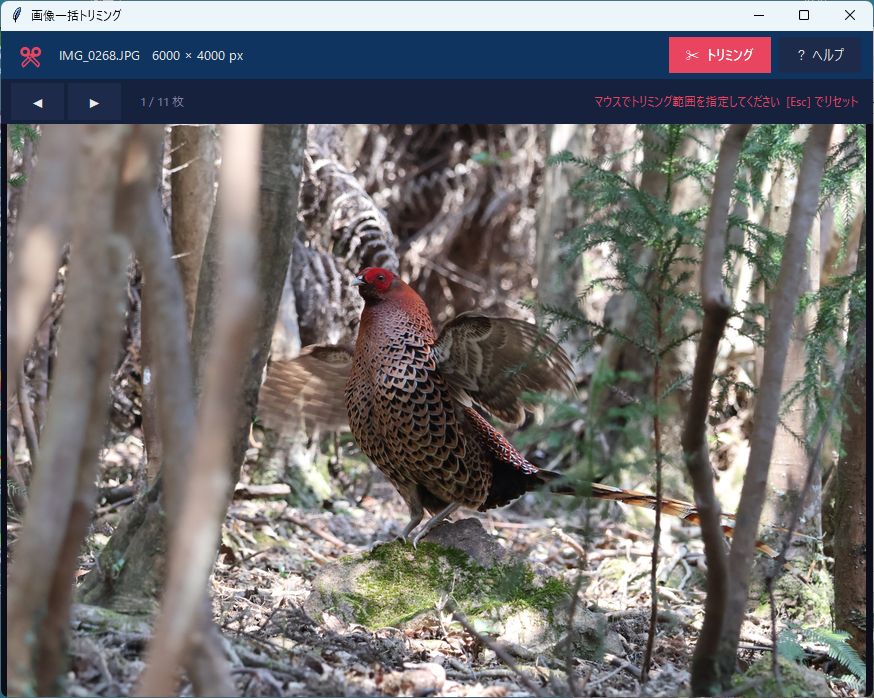
- アプリのウインドウに、複数画像をドラッグ&ドロップすると、最初の画像をウインドウ内に表示。
- トリミング範囲は、マウスで四角で囲む。[Esc]キーで、トリミング範囲をリセット。
- キーボードの左右ボタンで、複数画像を移動して表示。トリミング範囲は表示したまま。
- 「トリミング」ボタンでトリミングし、画像のあるフォルダーの下に「trim」フォルダーを作成してトリミング画像を元と同じ名前で入れる。


■ Pythonライブラリインストール
pip install tkinterdnd2 Pillow
■ Pythonプログラムコード
※ 【後日追記】最初のバージョンでは、元の写真に埋め込まれたICCプロファイル(sRGB、Adobe RGB、Display P3など)が保存されていなかった。そのために、鮮やかさなどの色合いが失われていた。この点を修正した。
※ 【後日追記】Windowsクリップボードからのペーストに対応。画素数の違う複数画像のトリミング時の不具合も修正。
"""
画像一括トリミング アプリ
JPEG/PNG 画像をドラッグ&ドロップして、マウスで範囲指定し一括トリミング
"""
import tkinter as tk
from tkinter import messagebox, font, filedialog
import os
import re
try:
from tkinterdnd2 import DND_FILES, TkinterDnD
except ImportError:
raise SystemExit("tkinterdnd2 が必要です。\npip install tkinterdnd2")
try:
from PIL import Image, ImageTk, ImageDraw
except ImportError:
raise SystemExit("Pillow が必要です。\npip install Pillow")
# 大きな JPEG/PNG を開けるようにデコンプレッションボム制限を解除
Image.MAX_IMAGE_PIXELS = None
# ────────────── カラーパレット ──────────────
C = {
"bg": "#1a1a2e",
"panel": "#16213e",
"toolbar": "#0f3460",
"accent": "#e94560",
"accent2": "#533483",
"canvas_bg": "#0d0d1a",
"text": "#eaeaea",
"subtext": "#8888aa",
"btn_bg": "#1e2a4a",
"btn_hover": "#2e3a5a",
"trim_btn": "#e94560",
"trim_hover":"#ff6b7a",
}
class BatchTrimApp:
def __init__(self, root: tk.Tk):
self.root = root
self.root.title("画像一括トリミング")
self.root.geometry("1000x720")
self.root.minsize(600, 480)
self.root.configure(bg=C["bg"])
# 画像管理
self.image_paths: list[str] = []
self.current_index: int = 0
self.pil_image: Image.Image | None = None
self.photo_image: ImageTk.PhotoImage | None = None
self.clipboard_mode: bool = False # True = クリップボードから貼り付けた画像
# キャンバス上の画像領域
self.img_x = self.img_y = 0
self.img_w = self.img_h = 0
self.scale = 1.0
# トリミング矩形(キャンバス座標)
self.rect_start: tuple[int, int] | None = None
self.rect_end: tuple[int, int] | None = None
self.rect_id = None
self.overlay_ids: list[int] = []
self.drawing = False
# 正規化トリミング比率 (x1, y1, x2, y2) 各 0.0〜1.0
# 画像サイズに依存しない確定座標として保持する
self.trim_ratio: tuple[float, float, float, float] | None = None
# 絶対ピクセル座標 (left, top, right, bottom) — 指定した画像上の実ピクセル
# これを使って全画像を同一ピクセル数・位置でトリミングする
self.trim_abs: tuple[int, int, int, int] | None = None
# マウス操作モード: 'draw' | 'resize' | 'move' | None
self.mouse_mode: str | None = None
self.drag_handle: str | None = None # 'nw'|'ne'|'sw'|'se'
self.drag_offset: tuple[int, int] | None = None # move 時のオフセット
self.HANDLE_R = 12 # コーナー判定半径(px)
self._resize_after_id = None
self._build_ui()
self._setup_dnd()
self._bind_keys()
# ──────────────── UI 構築 ────────────────
def _build_ui(self):
# ──── ツールバー ────
toolbar = tk.Frame(self.root, bg=C["toolbar"], pady=0)
toolbar.pack(side=tk.TOP, fill=tk.X)
# アイコン風 左側ラベル
tk.Label(toolbar, text="✂", bg=C["toolbar"], fg=C["accent"],
font=("Segoe UI Emoji", 16)).pack(side=tk.LEFT, padx=(12, 4), pady=6)
self.info_var = tk.StringVar(value="JPEG / PNG 画像をここにドロップしてください")
info = tk.Label(toolbar, textvariable=self.info_var,
bg=C["toolbar"], fg=C["text"],
font=("Yu Gothic UI", 10))
info.pack(side=tk.LEFT, padx=4, pady=8)
# 右側ボタン群
btn_cfg = dict(relief=tk.FLAT, borderwidth=0, padx=14, pady=6,
font=("Yu Gothic UI", 10), cursor="hand2")
self.help_btn = tk.Button(toolbar, text="? ヘルプ",
bg=C["btn_bg"], fg=C["text"],
activebackground=C["btn_hover"], activeforeground=C["text"],
command=self.show_help, **btn_cfg)
self.help_btn.pack(side=tk.RIGHT, padx=(0, 12), pady=6)
self.trim_btn = tk.Button(toolbar, text="✂ トリミング",
bg=C["trim_btn"], fg="white",
activebackground=C["trim_hover"], activeforeground="white",
font=("Yu Gothic UI", 10, "bold"),
command=self.do_trim, **{k: v for k, v in btn_cfg.items() if k != "font"})
self.trim_btn.pack(side=tk.RIGHT, padx=(0, 8), pady=6)
# ホバーエフェクト
self._add_hover(self.help_btn, C["btn_hover"], C["btn_bg"])
# ──── ナビゲーションバー ────
navbar = tk.Frame(self.root, bg=C["panel"], pady=4)
navbar.pack(side=tk.TOP, fill=tk.X)
nav_btn_cfg = dict(relief=tk.FLAT, borderwidth=0, padx=16, pady=3,
font=("Segoe UI", 12), cursor="hand2",
bg=C["btn_bg"], fg=C["text"],
activebackground=C["btn_hover"], activeforeground=C["text"])
self.prev_btn = tk.Button(navbar, text="◀", command=self.prev_image, **nav_btn_cfg)
self.prev_btn.pack(side=tk.LEFT, padx=(10, 4))
self.next_btn = tk.Button(navbar, text="▶", command=self.next_image, **nav_btn_cfg)
self.next_btn.pack(side=tk.LEFT, padx=(0, 10))
self.counter_var = tk.StringVar(value="")
tk.Label(navbar, textvariable=self.counter_var,
bg=C["panel"], fg=C["subtext"],
font=("Yu Gothic UI", 9)).pack(side=tk.LEFT, padx=6)
self.hint_var = tk.StringVar(value="")
tk.Label(navbar, textvariable=self.hint_var,
bg=C["panel"], fg=C["accent"],
font=("Yu Gothic UI", 9)).pack(side=tk.RIGHT, padx=12)
# ──── メインキャンバス ────
self.canvas = tk.Canvas(self.root, bg=C["canvas_bg"],
cursor="crosshair", highlightthickness=0)
self.canvas.pack(fill=tk.BOTH, expand=True)
# ドロップ誘導テキスト
self._drop_hint_id = self.canvas.create_text(
0, 0, text="📂 JPEG / PNG をドロップ または Ctrl+V で貼り付け",
fill=C["subtext"], font=("Yu Gothic UI", 16),
anchor=tk.CENTER, tags="droptip"
)
self.canvas.bind("<ButtonPress-1>", self._on_press)
self.canvas.bind("<B1-Motion>", self._on_drag)
self.canvas.bind("<ButtonRelease-1>", self._on_release)
self.canvas.bind("<Configure>", self._on_canvas_resize)
self.canvas.bind("<Motion>", self._on_motion)
def _add_hover(self, widget, hover_color, normal_color):
widget.bind("<Enter>", lambda e: widget.config(bg=hover_color))
widget.bind("<Leave>", lambda e: widget.config(bg=normal_color))
# ──────────────── DnD / キーバインド ────────────────
def _setup_dnd(self):
self.root.drop_target_register(DND_FILES)
self.root.dnd_bind("<<Drop>>", self._on_drop)
def _bind_keys(self):
self.root.bind("<Escape>", self.reset_rect)
self.root.bind("<Left>", self.prev_image)
self.root.bind("<Right>", self.next_image)
self.root.bind("<Control-v>", lambda e: self.paste_from_clipboard())
self.root.bind("<Control-V>", lambda e: self.paste_from_clipboard())
# ──────────────── ドロップ処理 ────────────────
def _natural_key(self, path: str):
"""ファイル名(拡張子除く)を数値部分で自然順ソートするキー関数"""
stem = os.path.splitext(os.path.basename(path))[0].lower()
return [int(c) if c.isdigit() else c
for c in re.split(r'(\d+)', stem)]
def _on_drop(self, event):
files = self._parse_drop(event.data)
valid = [f for f in files if f.lower().endswith((".jpg", ".jpeg", ".png"))]
if not valid:
messagebox.showwarning("警告", "JPEG または PNG ファイルをドロップしてください。")
return
self.clipboard_mode = False
self.image_paths = sorted(valid, key=self._natural_key)
self.current_index = 0
self._load_image()
# ──────────────── クリップボード貼り付け ────────────────
def paste_from_clipboard(self):
"""クリップボードの画像を読み込んで表示する"""
try:
from PIL import ImageGrab
img = ImageGrab.grabclipboard()
except Exception as e:
messagebox.showerror("エラー", f"クリップボードの取得に失敗しました:\n{e}")
return
if img is None:
messagebox.showwarning("貼り付け", "クリップボードに画像がありません。\n画面をキャプチャしてから貼り付けてください。")
return
if not isinstance(img, Image.Image):
messagebox.showwarning("貼り付け", "クリップボードのデータは画像ではありません。")
return
# RGB 変換(RGBA のまま JPEG 保存できない場面への保険)
if img.mode not in ("RGB", "RGBA"):
img = img.convert("RGB")
self.clipboard_mode = True
self.image_paths = []
self.current_index = 0
self.pil_image = img
self.reset_rect()
self._update_labels()
self._render()
def _parse_drop(self, data: str) -> list[str]:
"""tkinterdnd2 のパス文字列(スペース区切り・{}囲み混在)を解析"""
result = []
for m in re.finditer(r'\{([^}]+)\}|(\S+)', data):
result.append(m.group(1) or m.group(2))
return result
# ──────────────── 画像読み込み・表示 ────────────────
def _load_image(self):
if not self.image_paths:
return
path = self.image_paths[self.current_index]
try:
self.pil_image = Image.open(path)
self._update_labels()
self._render()
except Exception as e:
messagebox.showerror("エラー", f"画像を開けませんでした:\n{path}\n\n{e}")
def _update_labels(self):
if not self.pil_image:
return
w, h = self.pil_image.size
if self.clipboard_mode:
self.info_var.set(f"📋 クリップボードの画像 {w} × {h} px")
self.counter_var.set("1 / 1 枚")
else:
if not self.image_paths:
return
path = self.image_paths[self.current_index]
name = os.path.basename(path)
n = len(self.image_paths)
i = self.current_index + 1
self.info_var.set(f"{name} {w} × {h} px")
self.counter_var.set(f"{i} / {n} 枚")
if self.trim_abs:
left, top, right, bottom = self.trim_abs
rw = right - left
rh = bottom - top
self.hint_var.set(f"範囲: {rw} × {rh} px")
elif self.trim_ratio and self.pil_image:
iw, ih = self.pil_image.size
rw = int((self.trim_ratio[2] - self.trim_ratio[0]) * iw)
rh = int((self.trim_ratio[3] - self.trim_ratio[1]) * ih)
self.hint_var.set(f"範囲: {rw} × {rh} px")
else:
self.hint_var.set("マウスでトリミング範囲を指定してください [Esc] でリセット" if self.pil_image else "")
def _render(self):
"""現在の PIL 画像をキャンバスに描画"""
if self.pil_image is None:
return
cw = self.canvas.winfo_width()
ch = self.canvas.winfo_height()
if cw < 10 or ch < 10:
self.root.after(80, self._render)
return
iw, ih = self.pil_image.size
self.scale = min(cw / iw, ch / ih)
nw = max(1, int(iw * self.scale))
nh = max(1, int(ih * self.scale))
self.img_x = (cw - nw) // 2
self.img_y = (ch - nh) // 2
self.img_w, self.img_h = nw, nh
resized = self.pil_image.resize((nw, nh), Image.LANCZOS)
self.photo_image = ImageTk.PhotoImage(resized)
self.canvas.delete("all")
self.canvas.create_image(self.img_x, self.img_y, anchor=tk.NW,
image=self.photo_image, tags="photo")
# 画像切り替え後、trim_abs からキャンバス座標を復元
# trim_ratio ではなく trim_abs を使うことで
# 画像サイズに関わらず同一ピクセル位置を表示する
if self.trim_abs is not None:
self._abs_to_rect()
elif self.trim_ratio is not None:
self._ratio_to_rect()
self._redraw_overlay()
def _on_canvas_resize(self, event):
# ドロップ誘導テキスト位置更新(画像未表示のときのみ)
if not self.image_paths and not self.clipboard_mode and not self.pil_image:
self.canvas.coords("droptip", event.width // 2, event.height // 2)
if self._resize_after_id:
self.root.after_cancel(self._resize_after_id)
self._resize_after_id = self.root.after(80, self._render)
# ──────────────── 比率↔キャンバス座標 変換 ────────────────
def _ratio_to_rect(self):
"""trim_ratio から現在の画像のキャンバス座標を rect_start/end に反映"""
if self.trim_ratio is None or self.pil_image is None:
return
r = self.trim_ratio
# canvas_x = img_x + ratio_x * iw * scale (= img_x + ratio_x * img_w)
x1 = self.img_x + r[0] * self.img_w
y1 = self.img_y + r[1] * self.img_h
x2 = self.img_x + r[2] * self.img_w
y2 = self.img_y + r[3] * self.img_h
self.rect_start = (x1, y1)
self.rect_end = (x2, y2)
def _abs_to_rect(self):
"""trim_abs(絶対ピクセル座標)から現在のキャンバス座標を rect_start/end に反映"""
if self.trim_abs is None or self.pil_image is None:
return
iw, ih = self.pil_image.size
left, top, right, bottom = self.trim_abs
sx = self.img_w / iw
sy = self.img_h / ih
x1 = self.img_x + left * sx
y1 = self.img_y + top * sy
x2 = self.img_x + right * sx
y2 = self.img_y + bottom * sy
self.rect_start = (x1, y1)
self.rect_end = (x2, y2)
def _rect_to_ratio(self):
"""rect_start/end と現在の画像から trim_ratio および trim_abs を確定・保存"""
if not (self.rect_start and self.rect_end and self.pil_image):
return
x1i, y1i = self._canvas_to_image(*self.rect_start)
x2i, y2i = self._canvas_to_image(*self.rect_end)
iw, ih = self.pil_image.size
self.trim_ratio = (
max(0.0, min(x1i, x2i) / iw),
max(0.0, min(y1i, y2i) / ih),
min(1.0, max(x1i, x2i) / iw),
min(1.0, max(y1i, y2i) / ih),
)
# 絶対ピクセル座標を保存(これが一括トリミングの基準になる)
self.trim_abs = (
max(0, int(min(x1i, x2i))),
max(0, int(min(y1i, y2i))),
min(iw, int(max(x1i, x2i))),
min(ih, int(max(y1i, y2i))),
)
def _rect_to_ratio_display_only(self):
"""resize/move ドラッグ中の表示更新専用。trim_abs は上書きしない。"""
if not (self.rect_start and self.rect_end and self.pil_image):
return
x1i, y1i = self._canvas_to_image(*self.rect_start)
x2i, y2i = self._canvas_to_image(*self.rect_end)
iw, ih = self.pil_image.size
self.trim_ratio = (
max(0.0, min(x1i, x2i) / iw),
max(0.0, min(y1i, y2i) / ih),
min(1.0, max(x1i, x2i) / iw),
min(1.0, max(y1i, y2i) / ih),
)
# trim_abs はここでは更新しない
# ──────────────── マウス操作 ────────────────
def _sorted_rect(self):
"""rect_start/end を (rx1, ry1, rx2, ry2) に正規化して返す"""
x1, y1 = self.rect_start
x2, y2 = self.rect_end
return min(x1, x2), min(y1, y2), max(x1, x2), max(y1, y2)
def _hit_test(self, x, y):
"""マウス位置のヒット判定: 'nw'|'ne'|'sw'|'se'|'move'|None"""
if not (self.rect_start and self.rect_end):
return None
rx1, ry1, rx2, ry2 = self._sorted_rect()
r = self.HANDLE_R
corners = {
'nw': (rx1, ry1), 'ne': (rx2, ry1),
'sw': (rx1, ry2), 'se': (rx2, ry2),
}
for name, (cx, cy) in corners.items():
if abs(x - cx) <= r and abs(y - cy) <= r:
return name
if rx1 <= x <= rx2 and ry1 <= y <= ry2:
return 'move'
return None
def _cursor_for_hit(self, hit):
cursors = {
'nw': 'size_nw_se', 'se': 'size_nw_se',
'ne': 'size_ne_sw', 'sw': 'size_ne_sw',
'move': 'fleur',
}
return cursors.get(hit, 'crosshair')
def _on_motion(self, event):
"""ホバー時のカーソル変更"""
if self.mouse_mode is not None:
return
hit = self._hit_test(event.x, event.y)
self.canvas.config(cursor=self._cursor_for_hit(hit))
def _clamp_to_image(self, x, y):
"""キャンバス座標を画像領域にクランプ"""
x = max(self.img_x, min(x, self.img_x + self.img_w))
y = max(self.img_y, min(y, self.img_y + self.img_h))
return x, y
def _on_press(self, event):
if not self.pil_image:
return
hit = self._hit_test(event.x, event.y)
if hit in ('nw', 'ne', 'sw', 'se'):
# リサイズモード開始
self.mouse_mode = 'resize'
self.drag_handle = hit
# rect を正規化してから保持
rx1, ry1, rx2, ry2 = self._sorted_rect()
self.rect_start = (rx1, ry1)
self.rect_end = (rx2, ry2)
self.canvas.config(cursor=self._cursor_for_hit(hit))
elif hit == 'move':
# 移動モード開始
self.mouse_mode = 'move'
rx1, ry1, rx2, ry2 = self._sorted_rect()
self.rect_start = (rx1, ry1)
self.rect_end = (rx2, ry2)
self.drag_offset = (event.x - rx1, event.y - ry1)
self.canvas.config(cursor='fleur')
else:
# 新規描画モード開始
self.mouse_mode = 'draw'
cx, cy = self._clamp_to_image(event.x, event.y)
self.rect_start = (cx, cy)
self.rect_end = None
self._clear_overlay()
self.canvas.config(cursor='crosshair')
def _on_drag(self, event):
if self.mouse_mode is None or not self.pil_image:
return
x, y = event.x, event.y
if self.mouse_mode == 'draw':
cx, cy = self._clamp_to_image(x, y)
self.rect_end = (cx, cy)
self._redraw_overlay()
elif self.mouse_mode == 'resize':
cx, cy = self._clamp_to_image(x, y)
rx1, ry1, rx2, ry2 = self._sorted_rect()
h = self.drag_handle
if h == 'nw':
self.rect_start = (cx, cy)
self.rect_end = (rx2, ry2)
elif h == 'ne':
self.rect_start = (rx1, cy)
self.rect_end = (cx, ry2)
elif h == 'sw':
self.rect_start = (cx, ry1)
self.rect_end = (rx2, cy)
elif h == 'se':
self.rect_start = (rx1, ry1)
self.rect_end = (cx, cy)
self._rect_to_ratio_display_only()
self._redraw_overlay()
elif self.mouse_mode == 'move':
off_x, off_y = self.drag_offset
rx1, ry1, rx2, ry2 = self._sorted_rect()
w = rx2 - rx1
h = ry2 - ry1
new_x1 = x - off_x
new_y1 = y - off_y
# 画像領域にクランプ
new_x1 = max(self.img_x, min(new_x1, self.img_x + self.img_w - w))
new_y1 = max(self.img_y, min(new_y1, self.img_y + self.img_h - h))
self.rect_start = (new_x1, new_y1)
self.rect_end = (new_x1 + w, new_y1 + h)
self._rect_to_ratio_display_only()
self._redraw_overlay()
def _on_release(self, event):
if self.mouse_mode is None:
return
mode = self.mouse_mode
self.mouse_mode = None
self.drag_handle = None
self.drag_offset = None
if mode == 'draw':
if not (self.rect_start and self.rect_end):
return
x1, y1 = self.rect_start
x2, y2 = self.rect_end
if abs(x2 - x1) < 4 or abs(y2 - y1) < 4:
self.reset_rect()
return
# 正規化
self.rect_start = (min(x1, x2), min(y1, y2))
self.rect_end = (max(x1, x2), max(y1, y2))
# 枠確定 → 比率として保存(これが保存・表示の正規座標になる)
self._rect_to_ratio()
# カーソルをホバー状態に戻す
hit = self._hit_test(event.x, event.y)
self.canvas.config(cursor=self._cursor_for_hit(hit))
self._update_labels()
def reset_rect(self, event=None):
self.rect_start = None
self.rect_end = None
self.trim_ratio = None
self.trim_abs = None
self.mouse_mode = None
self.drag_handle = None
self.drag_offset = None
self._clear_overlay()
self.canvas.config(cursor='crosshair')
has_image = bool(self.image_paths) or self.clipboard_mode
self.hint_var.set(
"マウスでトリミング範囲を指定してください [Esc] でリセット"
if has_image else ""
)
# ──────────────── オーバーレイ描画 ────────────────
def _clear_overlay(self):
for oid in self.overlay_ids:
self.canvas.delete(oid)
self.overlay_ids.clear()
self.rect_id = None
def _redraw_overlay(self):
self._clear_overlay()
if not (self.rect_start and self.rect_end and self.pil_image):
return
x1, y1 = self.rect_start
x2, y2 = self.rect_end
rx1, ry1 = min(x1, x2), min(y1, y2)
rx2, ry2 = max(x1, x2), max(y1, y2)
# 画像領域にクランプ
rx1 = max(rx1, self.img_x)
ry1 = max(ry1, self.img_y)
rx2 = min(rx2, self.img_x + self.img_w)
ry2 = min(ry2, self.img_y + self.img_h)
ix, iy = self.img_x, self.img_y
iX, iY = self.img_x + self.img_w, self.img_y + self.img_h
# 暗幕(選択外領域を半透明で覆う)
shade = "#000000"
alpha_fill = "" # tkinter Canvas は本来 RGBA 不可なので stipple で代用
stipple = "gray50"
def shade_rect(ax1, ay1, ax2, ay2):
oid = self.canvas.create_rectangle(
ax1, ay1, ax2, ay2,
fill=shade, outline="", stipple=stipple
)
self.overlay_ids.append(oid)
if ry1 > iy: shade_rect(ix, iy, iX, ry1)
if ry2 < iY: shade_rect(ix, ry2, iX, iY)
if rx1 > ix: shade_rect(ix, ry1, rx1, ry2)
if rx2 < iX: shade_rect(rx2, ry1, iX, ry2)
# 選択枠(白)
oid = self.canvas.create_rectangle(
rx1, ry1, rx2, ry2,
outline="white", width=2
)
self.overlay_ids.append(oid)
self.rect_id = oid
# ──────────────── 座標変換 ────────────────
def _canvas_to_image(self, cx: float, cy: float) -> tuple[float, float]:
iw, ih = self.pil_image.size
return (cx - self.img_x) * iw / self.img_w, (cy - self.img_y) * ih / self.img_h
# ──────────────── ナビゲーション ────────────────
def prev_image(self, event=None):
if not self.image_paths:
return
self.current_index = (self.current_index - 1) % len(self.image_paths)
self._load_image()
def next_image(self, event=None):
if not self.image_paths:
return
self.current_index = (self.current_index + 1) % len(self.image_paths)
self._load_image()
# ──────────────── トリミング実行 ────────────────
def do_trim(self):
if not self.pil_image and not self.image_paths:
messagebox.showwarning("警告", "画像がありません。\nまず画像をドロップするか、Ctrl+V で貼り付けてください。")
return
if self.trim_ratio is None and self.trim_abs is None:
messagebox.showwarning("警告", "トリミング範囲が指定されていません。\nマウスで範囲をドラッグしてください。")
return
ratio = self.trim_ratio # (x1, y1, x2, y2) 各 0.0〜1.0
# ── クリップボードモード:保存ダイアログで1枚保存 ──
if self.clipboard_mode:
self._do_trim_clipboard(ratio)
return
# ── ファイルモード:一括保存(絶対ピクセル座標を優先使用)──
self._do_trim_files(self.trim_abs if self.trim_abs else ratio)
def _do_trim_clipboard(self, ratio):
"""クリップボード画像をトリミングして保存ダイアログで保存"""
img = self.pil_image
iw, ih = img.size
left, top, right, bottom = (
int(ratio[0] * iw), int(ratio[1] * ih),
min(int(ratio[2] * iw), iw), min(int(ratio[3] * ih), ih),
)
if right <= left or bottom <= top:
messagebox.showwarning("警告", "トリミング範囲が画像サイズより大きいです。")
return
cropped = img.crop((left, top, right, bottom))
out_path = filedialog.asksaveasfilename(
title="トリミング画像を保存",
initialfile="screenshot",
defaultextension=".png",
filetypes=[
("PNG 画像", "*.png"),
("JPEG 画像", "*.jpg"),
("すべてのファイル", "*.*"),
],
)
if not out_path:
return # キャンセル
ext = os.path.splitext(out_path)[1].lower()
dpi = self.pil_image.info.get("dpi")
try:
if ext in (".jpg", ".jpeg"):
save_img = cropped.convert("RGB") if cropped.mode == "RGBA" else cropped
save_kw = {"format": "JPEG", "quality": 95, "optimize": True}
if dpi:
save_kw["dpi"] = dpi
save_img.save(out_path, **save_kw)
else:
save_kw = {"format": "PNG", "optimize": True}
if dpi:
save_kw["dpi"] = dpi
cropped.save(out_path, **save_kw)
messagebox.showinfo("完了", f"✅ 保存しました。\n\n{out_path}")
except Exception as e:
messagebox.showerror("保存エラー", f"保存に失敗しました:\n{e}")
def _do_trim_files(self, coords):
"""ファイル画像を一括トリミングして trim フォルダーへ保存
coords が tuple[int,int,int,int] (絶対px) の場合はそのまま使用。
tuple[float,...] (比率) の場合は各画像に掛け算(後方互換用)。
"""
ok_count = 0
errors = []
# 絶対ピクセル座標かどうかを判定
use_abs = isinstance(coords[0], int)
if use_abs:
abs_left, abs_top, abs_right, abs_bottom = coords
trim_w = abs_right - abs_left
trim_h = abs_bottom - abs_top
for path in self.image_paths:
try:
img = Image.open(path)
iw, ih = img.size
if use_abs:
# 絶対ピクセル座標:画像サイズを超えていたらクランプ
left = min(abs_left, iw)
top = min(abs_top, ih)
right = min(abs_right, iw)
bottom = min(abs_bottom, ih)
else:
# 比率モード(後方互換)
ratio = coords
left = int(ratio[0] * iw)
top = int(ratio[1] * ih)
right = min(int(ratio[2] * iw), iw)
bottom = min(int(ratio[3] * ih), ih)
if right <= left or bottom <= top:
errors.append(f"{os.path.basename(path)}: トリミング範囲が画像サイズに対して無効")
continue
cropped = img.crop((left, top, right, bottom))
folder = os.path.dirname(os.path.abspath(path))
trim_dir = os.path.join(folder, "trim")
os.makedirs(trim_dir, exist_ok=True)
out_path = os.path.join(trim_dir, os.path.basename(path))
ext = os.path.splitext(path)[1].lower()
# ICCカラープロファイル・DPI情報を取得(色合い・解像度保持のため)
icc_profile = img.info.get("icc_profile", None)
dpi = img.info.get("dpi")
if ext in (".jpg", ".jpeg"):
# EXIF・ICCプロファイル・DPI保持
exif = img.info.get("exif", b"")
save_kw = {"format": "JPEG", "quality": 95, "optimize": True}
if exif:
save_kw["exif"] = exif
if icc_profile:
save_kw["icc_profile"] = icc_profile
if dpi:
save_kw["dpi"] = dpi
cropped.save(out_path, **save_kw)
else:
# ICCプロファイル・DPI保持
save_kw = {"format": "PNG", "optimize": True}
if icc_profile:
save_kw["icc_profile"] = icc_profile
if dpi:
save_kw["dpi"] = dpi
cropped.save(out_path, **save_kw)
ok_count += 1
except Exception as e:
errors.append(f"{os.path.basename(path)}: {e}")
# 結果ダイアログ
if use_abs:
size_info = f"トリミングサイズ: {trim_w} × {trim_h} px\n\n"
else:
size_info = ""
if not errors:
folder = os.path.dirname(os.path.abspath(self.image_paths[0]))
trim_dir = os.path.join(folder, "trim")
# messagebox.showinfo(
# "完了",
# f"✅ {ok_count} 枚のトリミングが完了しました。\n\n"
# f"{size_info}"
# f"保存先:\n{trim_dir}"
# )
else:
err_str = "\n".join(errors[:8])
if len(errors) > 8:
err_str += f"\n…他 {len(errors) - 8} 件"
messagebox.showwarning(
"完了(一部エラー)",
f"✅ 成功: {ok_count} 枚\n"
f"❌ エラー: {len(errors)} 枚\n\n{err_str}"
)
# ──────────────── ヘルプ ────────────────
def show_help(self):
win = tk.Toplevel(self.root)
win.title("ヘルプ - 画像一括トリミング")
win.geometry("480x560")
win.resizable(False, False)
win.configure(bg=C["bg"])
win.transient(self.root)
win.grab_set()
tk.Label(win, text="✂ 使い方", bg=C["bg"], fg=C["accent"],
font=("Yu Gothic UI", 16, "bold")).pack(pady=(20, 10))
sep = tk.Frame(win, bg=C["accent"], height=2)
sep.pack(fill=tk.X, padx=20, pady=(0, 16))
help_sections = [
("📂 画像の読み込み",
"ウインドウに JPEG または PNG ファイルを\n"
"複数まとめてドラッグ&ドロップします。"),
("📋 クリップボードから貼り付け",
"Print Screen や Snipping Tool でキャプチャした画像を\n"
"Ctrl+V または「貼り付け」ボタンで貼り付けます。\n"
"トリミング後は保存ダイアログが開きます。\n"
"(デフォルトファイル名: screenshot)"),
("◀ ▶ 画像の切り替え",
"キーボードの ← → キー、または\n"
"ナビゲーションボタンで切り替えます。\n"
"トリミング範囲はそのまま維持されます。"),
("🖱 トリミング範囲の指定",
"画像の上でマウスをドラッグして\n"
"範囲を四角で囲みます。\n"
"・枠の四隅をドラッグ → 拡大縮小\n"
"・枠の内側をドラッグ → 枠全体を移動\n"
"[Esc] キーで範囲をリセットできます。"),
("✂ トリミングの実行",
"「トリミング」ボタンを押すと、すべての画像を\n"
"同じ範囲で一括トリミングして保存します。"),
("💾 保存先",
"元画像フォルダー内の「trim」フォルダーに\n"
"元のファイル名のまま保存されます。\n"
"元の画像は上書きされません。"),
]
frame = tk.Frame(win, bg=C["bg"])
frame.pack(fill=tk.BOTH, expand=True, padx=24)
for title, body in help_sections:
tk.Label(frame, text=title, bg=C["bg"], fg=C["text"],
font=("Yu Gothic UI", 10, "bold"),
anchor="w").pack(fill=tk.X, pady=(8, 1))
tk.Label(frame, text=body, bg=C["bg"], fg=C["subtext"],
font=("Yu Gothic UI", 9),
anchor="w", justify=tk.LEFT).pack(fill=tk.X, padx=8)
close_btn = tk.Button(
win, text="閉じる", command=win.destroy,
bg=C["trim_btn"], fg="white",
activebackground=C["trim_hover"], activeforeground="white",
relief=tk.FLAT, font=("Yu Gothic UI", 10, "bold"),
padx=24, pady=6, cursor="hand2"
)
close_btn.pack(pady=20)
# ──────────────── エントリーポイント ────────────────
def main():
try:
root = TkinterDnD.Tk()
except Exception as e:
raise SystemExit(f"TkinterDnD の初期化に失敗しました:\n{e}")
# Windows DPI対応
try:
from ctypes import windll
windll.shcore.SetProcessDpiAwareness(1)
except Exception:
pass
app = BatchTrimApp(root)
root.mainloop()
if __name__ == "__main__":
main()