Windows)Python)2ペイン(2画面左右表示)画像ビューアー作成。
PythonでWindows用「2ペイン画像ビューアー」を作成した。
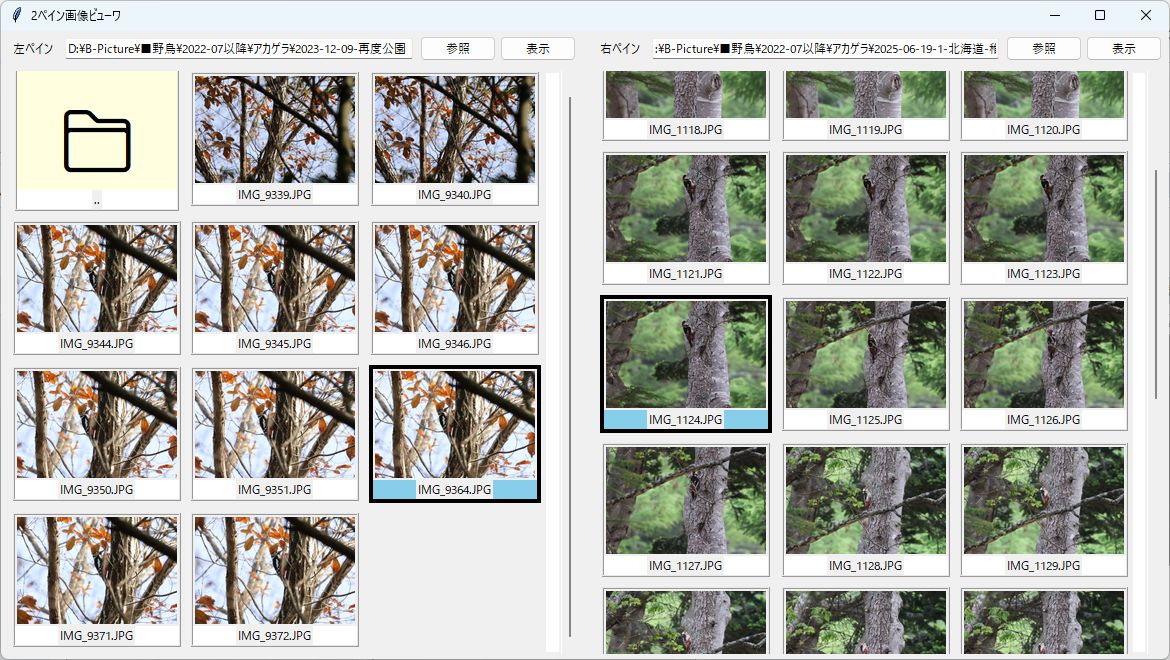
2つのフォルダーを指定して画面左右で画像を比較表示できる。
- 左右のペインそれぞれに、画像を見たいフォルダーを指定して「表示」ボタンを押すとサムネイル画像が表示される。
- サムネイル画像をクリックすると、画像選択状態になる。Shiftキーと合わせて複数画像を複数選択もできる。この状態でCtrl+Cキーでクリップボードにコピーできる。エクスプローラーでCtrl+Vで画像をコピーできる。
- サムネイル表示画面で、左右上下矢印キー(←→↑↓)で選択画像の移動ができる。
- サムネイル表示画面で、マウスホイールでスクロールできる。
- サムネイル画像をダブルクリックすると、その画像を拡大表示する。左右矢印キー(←→)で表示画像が移動する。Escキーでサムネイルに戻る。
- 拡大画像表示後、サムネイル表示に戻った時は、最後に表示していた画像が選択状態で表示される。
- 下位フォルダーが表示された場合は、クリックで下位フォルダに移動できる。
- 「..」フォルダーをクリックすると、親フォルダーに移動する。


■ Pythonライブラリインストール
次のライブラリが必要なので、インストールする。
pip install Pillow
pip install pywin32
■ Pythonプログラムコード
#!/usr/bin/env python3
# -*- coding: utf-8 -*-
"""
2ペイン画像ビューア
左右2つのペインでそれぞれディレクトリから画像を表示
"""
import os
import tkinter as tk
from tkinter import ttk, filedialog
from PIL import Image, ImageTk
from pathlib import Path
import win32clipboard
import win32con
class ImagePane(ttk.Frame):
"""画像表示ペイン"""
def __init__(self, parent, pane_title):
super().__init__(parent)
self.pane_title = pane_title
self.current_dir = "" # 現在のディレクトリ
self.images = [] # 画像ファイルパスのリスト
self.folders = [] # フォルダパスのリスト
self.thumbnails = [] # サムネイル画像のリスト
self.folder_widgets = [] # フォルダウィジェットのリスト
self.current_index = -1 # 現在選択中の画像インデックス
self.selected_indices = set() # 選択中の画像インデックスのセット
self.view_mode = "thumbnail" # "thumbnail" or "fullsize"
self.fullsize_photo = None # 拡大表示用の画像参照を保持
self.setup_ui()
# キーイベントを受け取れるようにする
self.bind("<FocusIn>", lambda e: None) # フォーカス可能にする
self.bind("<Control-c>", self.copy_to_clipboard)
self.bind("<Up>", self.on_arrow_key)
self.bind("<Down>", self.on_arrow_key)
self.bind("<Left>", self.on_arrow_key)
self.bind("<Right>", self.on_arrow_key)
def setup_ui(self):
"""UI構築"""
# タイトルとディレクトリ選択
control_frame = ttk.Frame(self)
control_frame.pack(fill=tk.X, padx=5, pady=5)
ttk.Label(control_frame, text=self.pane_title).pack(side=tk.LEFT, padx=5)
self.dir_entry = ttk.Entry(control_frame)
self.dir_entry.pack(side=tk.LEFT, fill=tk.X, expand=True, padx=5)
self.dir_entry.bind("<Return>", lambda e: self.load_images())
ttk.Button(control_frame, text="参照", command=self.browse_directory).pack(side=tk.LEFT, padx=2)
ttk.Button(control_frame, text="表示", command=self.load_images).pack(side=tk.LEFT, padx=2)
# メインコンテナ(サムネイル/拡大表示を切り替え)
self.main_container = ttk.Frame(self)
self.main_container.pack(fill=tk.BOTH, expand=True, padx=5, pady=5)
# サムネイル表示用スクロールキャンバス
self.thumbnail_frame = ttk.Frame(self.main_container)
self.canvas = tk.Canvas(self.thumbnail_frame, bg="white")
scrollbar = ttk.Scrollbar(self.thumbnail_frame, orient=tk.VERTICAL, command=self.canvas.yview)
self.scrollable_frame = ttk.Frame(self.canvas)
self.scrollable_frame.bind(
"<Configure>",
lambda e: self.canvas.configure(scrollregion=self.canvas.bbox("all"))
)
# キャンバスリサイズ時にサムネイルを再配置
self.canvas.bind("<Configure>", self.on_canvas_resize)
# マウスホイールでスクロール
self.canvas.bind("<MouseWheel>", self.on_mouse_wheel)
self.scrollable_frame.bind("<MouseWheel>", self.on_mouse_wheel)
self.canvas.create_window((0, 0), window=self.scrollable_frame, anchor="nw")
self.canvas.configure(yscrollcommand=scrollbar.set)
self.canvas.pack(side=tk.LEFT, fill=tk.BOTH, expand=True)
scrollbar.pack(side=tk.RIGHT, fill=tk.Y)
# 拡大表示用フレーム
self.fullsize_frame = tk.Frame(self.main_container, bg="black")
# ファイル名表示用ラベル(画面下部)- 先に作成
self.filename_label = tk.Label(self.fullsize_frame, text="", bg="black", fg="white",
font=("Arial", 12), pady=5)
self.filename_label.pack(side=tk.BOTTOM, fill=tk.X)
# 画像表示用ラベル - ファイル名ラベルの後に作成
self.fullsize_label = tk.Label(self.fullsize_frame, bg="black")
self.fullsize_label.pack(fill=tk.BOTH, expand=True)
# 初期状態はサムネイル表示
self.show_thumbnail_view()
def on_mouse_wheel(self, event):
"""マウスホイールでスクロール"""
if self.view_mode == "thumbnail":
# 現在のスクロール位置を取得
current_view = self.canvas.yview()
# スクロール量を計算
scroll_amount = int(-1 * (event.delta / 120))
# 上方向スクロール時、既に最上部にいる場合は何もしない
if scroll_amount < 0 and current_view[0] <= 0:
return
# 下方向スクロール時、既に最下部にいる場合は何もしない
if scroll_amount > 0 and current_view[1] >= 1:
return
self.canvas.yview_scroll(scroll_amount, "units")
def on_arrow_key(self, event):
"""矢印キーでサムネイル選択を移動 or 拡大表示で画像移動"""
if self.view_mode == "fullsize":
# 拡大表示モードでは左右キーで画像移動
if event.keysym == "Left":
self.prev_image()
elif event.keysym == "Right":
self.next_image()
return
# サムネイル表示モードでの処理
if not self.images:
return
# ウィンドウ幅に基づいて列数を計算
canvas_width = self.canvas.winfo_width()
if canvas_width <= 1:
canvas_width = 700
available_width = canvas_width - 20
cols = max(1, available_width // 170)
if self.current_index < 0:
# 選択がない場合は最初の画像を選択
self.current_index = 0
self.selected_indices = {0}
self.update_thumbnail_selection()
self.scroll_to_current()
return
new_index = self.current_index
if event.keysym == "Up":
new_index = max(0, self.current_index - cols)
elif event.keysym == "Down":
new_index = min(len(self.images) - 1, self.current_index + cols)
elif event.keysym == "Left":
new_index = max(0, self.current_index - 1)
elif event.keysym == "Right":
new_index = min(len(self.images) - 1, self.current_index + 1)
if new_index != self.current_index:
self.current_index = new_index
self.selected_indices = {new_index}
self.update_thumbnail_selection()
self.scroll_to_current()
def browse_directory(self):
"""ディレクトリ選択ダイアログ"""
# 現在のディレクトリを初期表示
initial_dir = self.current_dir if self.current_dir and os.path.isdir(self.current_dir) else os.path.expanduser("~")
directory = filedialog.askdirectory(initialdir=initial_dir)
if directory:
self.dir_entry.delete(0, tk.END)
self.dir_entry.insert(0, directory)
self.load_images()
def load_images(self):
"""ディレクトリから画像とフォルダを読み込む"""
directory = os.path.normpath(self.dir_entry.get())
if not os.path.isdir(directory):
return
# 既に表示済みのディレクトリと同じ場合は何もしない
if directory == self.current_dir and self.images:
return
self.current_dir = directory
# 拡大表示中の場合はサムネイル表示に戻す
if self.view_mode == "fullsize":
self.view_mode = "thumbnail"
self.show_thumbnail_view()
# サポートする画像形式
extensions = ('.png', '.jpg', '.jpeg', '.gif', '.bmp', '.webp')
# フォルダを取得
self.folders = []
# 親ディレクトリへのリンク(ルート以外)
parent_dir = os.path.dirname(directory)
if parent_dir and parent_dir != directory:
self.folders.append(("..", parent_dir))
# サブフォルダを取得
try:
for item in sorted(os.listdir(directory)):
item_path = os.path.join(directory, item)
if os.path.isdir(item_path) and not item.startswith('.'):
self.folders.append((item, item_path))
except PermissionError:
pass
# 画像ファイルを取得してソート
self.images = []
try:
self.images = sorted([
os.path.join(directory, f)
for f in os.listdir(directory)
if f.lower().endswith(extensions)
])
except PermissionError:
pass
self.current_index = -1
self.selected_indices.clear()
self.display_thumbnails()
def display_thumbnails(self):
"""サムネイル一覧表示(フォルダと画像)"""
# 既存のサムネイルをクリア
for widget in self.scrollable_frame.winfo_children():
widget.destroy()
self.thumbnails.clear()
self.folder_widgets.clear()
# ウィンドウ幅に基づいて列数を計算
# サムネイル幅160 + パディング10 = 170ピクセル
canvas_width = self.canvas.winfo_width()
if canvas_width <= 1:
canvas_width = 700 # デフォルト値
# スクロールバーの幅を考慮
available_width = canvas_width - 20
cols = max(1, available_width // 170) # 最低1列
item_index = 0
# フォルダを表示
for folder_name, folder_path in self.folders:
row = item_index // cols
col = item_index % cols
thumb_frame = tk.Frame(self.scrollable_frame, relief=tk.RIDGE, borderwidth=2, bg="white")
thumb_frame.grid(row=row, column=col, padx=5, pady=5)
# フォルダアイコン(📁を表示)160x120ピクセルに固定
folder_container = tk.Frame(thumb_frame, width=160, height=120, bg="lightyellow")
folder_container.pack_propagate(False) # サイズ固定
folder_container.pack()
folder_label = tk.Label(folder_container, text="📁", font=("Arial", 60),
cursor="hand2", bg="lightyellow")
folder_label.place(relx=0.5, rely=0.5, anchor="center")
folder_label.bind("<Button-1>", lambda e, path=folder_path: self.open_folder(path))
folder_container.bind("<Button-1>", lambda e, path=folder_path: self.open_folder(path))
# フォルダ名ラベル
name_label = ttk.Label(thumb_frame, text=folder_name, wraplength=160)
name_label.pack()
self.folder_widgets.append(thumb_frame)
item_index += 1
# 画像を順番に表示(非同期処理)
self._display_image_index = 0
self._item_index = item_index
self._cols = cols
self._schedule_next_thumbnail()
def _schedule_next_thumbnail(self):
"""次のサムネイルを表示するスケジュール"""
if self._display_image_index < len(self.images):
self.after(1, self._display_next_thumbnail)
def _display_next_thumbnail(self):
"""次のサムネイルを1つ表示"""
if self._display_image_index >= len(self.images):
return
idx = self._display_image_index
img_path = self.images[idx]
try:
# サムネイル作成
img = Image.open(img_path)
img.thumbnail((160, 120), Image.Resampling.LANCZOS)
photo = ImageTk.PhotoImage(img)
# サムネイルフレーム
row = self._item_index // self._cols
col = self._item_index % self._cols
thumb_frame = tk.Frame(self.scrollable_frame, relief=tk.RIDGE, borderwidth=2, bg="white")
thumb_frame.grid(row=row, column=col, padx=5, pady=5)
# 画像ラベル
img_label = tk.Label(thumb_frame, image=photo, cursor="hand2")
img_label.image = photo # 参照を保持
img_label.pack()
img_label.bind("<Button-1>", lambda e, i=idx: self.select_thumbnail(i, e))
img_label.bind("<Double-Button-1>", lambda e, i=idx: self.show_fullsize(i))
img_label.bind("<MouseWheel>", self.on_mouse_wheel)
# ファイル名ラベル
filename = os.path.basename(img_path)
name_label = ttk.Label(thumb_frame, text=filename, wraplength=160)
name_label.pack()
name_label.bind("<Button-1>", lambda e, i=idx: self.select_thumbnail(i, e))
name_label.bind("<Double-Button-1>", lambda e, i=idx: self.show_fullsize(i))
name_label.bind("<MouseWheel>", self.on_mouse_wheel)
self.thumbnails.append((thumb_frame, photo, name_label))
self._item_index += 1
except Exception as e:
print(f"Error loading {img_path}: {e}")
# 次の画像へ
self._display_image_index += 1
self._schedule_next_thumbnail()
def select_thumbnail(self, index, event):
"""サムネイルを選択"""
if event.state & 0x0001: # Shiftキーが押されている
# 範囲選択
if self.current_index >= 0:
start = min(self.current_index, index)
end = max(self.current_index, index)
self.selected_indices = set(range(start, end + 1))
else:
self.selected_indices = {index}
self.current_index = index
else:
# 単一選択
self.current_index = index
self.selected_indices = {index}
self.update_thumbnail_selection()
self.focus_set() # フォーカスを設定してCtrl+Cを受け取れるようにする
def copy_to_clipboard(self, event=None):
"""選択中のファイルをクリップボードにコピー"""
if not self.selected_indices:
return
# 選択中のファイルパスを取得
selected_files = [self.images[i] for i in sorted(self.selected_indices) if i < len(self.images)]
if not selected_files:
return
try:
# Windowsのクリップボードにファイルパスをセット
win32clipboard.OpenClipboard()
win32clipboard.EmptyClipboard()
# CF_HDROP形式でファイルパスをセット
# ファイルパスをヌル文字区切りで結合し、最後に2つのヌル文字を追加
file_list = '\0'.join(selected_files) + '\0\0'
# DROPFILES構造体を作成
# 構造体のサイズ(20バイト) + ファイルパスリスト
offset = 20 # DROPFILES構造体のサイズ
dropfiles = (
offset.to_bytes(4, 'little') + # pFiles (構造体からファイルリストまでのオフセット)
(0).to_bytes(4, 'little') + # pt.x
(0).to_bytes(4, 'little') + # pt.y
(0).to_bytes(4, 'little') + # fNC
(1).to_bytes(4, 'little') # fWide (Unicodeを使用)
)
# ファイルパスをUnicodeエンコード
file_data = file_list.encode('utf-16le')
# データを結合
data = dropfiles + file_data
win32clipboard.SetClipboardData(win32con.CF_HDROP, data)
win32clipboard.CloseClipboard()
print(f"Copied {len(selected_files)} file(s) to clipboard")
except Exception as e:
print(f"Error copying to clipboard: {e}")
try:
win32clipboard.CloseClipboard()
except:
pass
def open_folder(self, folder_path):
folder_path = os.path.normpath(folder_path)
if os.path.isdir(folder_path):
self.dir_entry.delete(0, tk.END)
self.dir_entry.insert(0, folder_path)
self.load_images()
def on_canvas_resize(self, event):
"""キャンバスリサイズ時にサムネイルを再配置"""
if self.view_mode == "thumbnail" and (self.images or self.folders):
# リサイズが落ち着いてから再描画
if hasattr(self, '_resize_timer'):
self.canvas.after_cancel(self._resize_timer)
self._resize_timer = self.canvas.after(200, self.rearrange_thumbnails)
def rearrange_thumbnails(self):
"""既存のサムネイルを再配置(再生成なし)"""
if self.view_mode != "thumbnail":
return
# ウィンドウ幅に基づいて列数を計算
canvas_width = self.canvas.winfo_width()
if canvas_width <= 1:
canvas_width = 700
available_width = canvas_width - 20
cols = max(1, available_width // 170)
item_index = 0
# フォルダウィジェットを再配置
for widget in self.folder_widgets:
row = item_index // cols
col = item_index % cols
widget.grid(row=row, column=col, padx=5, pady=5)
item_index += 1
# サムネイルウィジェットを再配置
for thumb_frame, photo, name_label in self.thumbnails:
row = item_index // cols
col = item_index % cols
thumb_frame.grid(row=row, column=col, padx=5, pady=5)
item_index += 1
def redisplay_thumbnails(self):
"""サムネイルを再描画(既存データを使用)"""
if self.view_mode == "thumbnail":
self.display_thumbnails()
def show_fullsize(self, index):
"""拡大表示"""
if not self.images or index < 0 or index >= len(self.images):
return
self.current_index = index
self.selected_indices = {index}
self.view_mode = "fullsize"
self.show_fullsize_view()
# リサイズイベントをバインド
self.fullsize_label.bind("<Configure>", lambda e: self.resize_fullsize_image())
self.load_and_display_fullsize()
def load_and_display_fullsize(self):
"""拡大画像を読み込んで表示"""
if self.current_index < 0 or self.current_index >= len(self.images):
return
try:
img_path = self.images[self.current_index]
img = Image.open(img_path)
# ファイル名を表示
filename = os.path.basename(img_path)
self.filename_label.config(text=filename)
# ファイル名ラベルの高さを更新して取得
self.filename_label.update_idletasks()
filename_height = self.filename_label.winfo_height()
if filename_height <= 1:
filename_height = 35 # デフォルト値(pady=5を含む)
# ペインサイズに合わせてリサイズ
pane_width = self.fullsize_frame.winfo_width()
pane_height = self.fullsize_frame.winfo_height()
# まだサイズが確定していない場合のデフォルト値
if pane_width <= 1:
pane_width = 800
if pane_height <= 1:
pane_height = 600
# 画像表示用の高さ = 全体の高さ - ファイル名ラベルの高さ
available_height = pane_height - filename_height
# アスペクト比を保持してリサイズ
img_ratio = img.width / img.height
pane_ratio = pane_width / available_height
if img_ratio > pane_ratio:
# 横長画像
new_width = pane_width
new_height = int(pane_width / img_ratio)
else:
# 縦長画像
new_height = available_height
new_width = int(available_height * img_ratio)
img = img.resize((new_width, new_height), Image.Resampling.LANCZOS)
self.fullsize_photo = ImageTk.PhotoImage(img)
self.fullsize_label.configure(image=self.fullsize_photo)
# サムネイル選択状態を更新
self.update_thumbnail_selection()
except Exception as e:
print(f"Error displaying fullsize image: {e}")
def resize_fullsize_image(self):
"""ウィンドウリサイズ時に画像を再調整"""
if self.view_mode == "fullsize" and self.current_index >= 0:
# 少し遅延させて、リサイズが落ち着いてから実行
if hasattr(self, '_resize_timer'):
self.fullsize_label.after_cancel(self._resize_timer)
self._resize_timer = self.fullsize_label.after(100, self.load_and_display_fullsize)
def show_thumbnail_view(self):
"""サムネイル表示モードに切り替え"""
self.fullsize_frame.pack_forget()
self.thumbnail_frame.pack(fill=tk.BOTH, expand=True)
self.focus_set() # フォーカスを設定
def show_fullsize_view(self):
"""拡大表示モードに切り替え"""
self.thumbnail_frame.pack_forget()
self.fullsize_frame.pack(fill=tk.BOTH, expand=True)
self.focus_set() # フォーカスを設定(矢印キーを受け取るため)
def back_to_thumbnails(self):
"""サムネイル表示に戻る"""
if self.view_mode == "fullsize":
self.view_mode = "thumbnail"
self.show_thumbnail_view()
# カレント画像が見えるようにスクロール
self.scroll_to_current()
def scroll_to_current(self):
"""カレント画像が見えるようにスクロール"""
if self.current_index < 0 or self.current_index >= len(self.thumbnails):
return
# 現在の画像フレームを取得
if self.current_index < len(self.thumbnails):
current_frame = self.thumbnails[self.current_index][0]
# キャンバス全体の更新を待つ
self.canvas.update_idletasks()
# フレームの位置を取得
try:
# フレームのy座標を取得
frame_y = current_frame.winfo_y()
frame_height = current_frame.winfo_height()
# キャンバスの表示領域
canvas_height = self.canvas.winfo_height()
# スクロール領域全体の高さ
scroll_region = self.canvas.bbox("all")
if scroll_region:
total_height = scroll_region[3]
# フレームを中央付近に表示するようにスクロール
target_y = frame_y - (canvas_height // 2) + (frame_height // 2)
target_y = max(0, target_y)
if total_height > 0:
scroll_position = target_y / total_height
self.canvas.yview_moveto(scroll_position)
except:
# エラーが発生した場合は簡易的な方法でスクロール
canvas_width = self.canvas.winfo_width()
if canvas_width <= 1:
canvas_width = 700
available_width = canvas_width - 20
cols = max(1, available_width // 170)
row = self.current_index // cols
total_rows = (len(self.thumbnails) + cols - 1) // cols
if total_rows > 0:
scroll_position = row / total_rows
self.canvas.yview_moveto(max(0, scroll_position - 0.1))
def next_image(self):
"""次の画像へ"""
if self.view_mode == "fullsize" and self.images:
# 最後の画像でなければ次へ進む
if self.current_index < len(self.images) - 1:
self.current_index += 1
self.selected_indices = {self.current_index}
self.load_and_display_fullsize()
def prev_image(self):
"""前の画像へ"""
if self.view_mode == "fullsize" and self.images:
# 最初の画像でなければ前へ戻る
if self.current_index > 0:
self.current_index -= 1
self.selected_indices = {self.current_index}
self.load_and_display_fullsize()
def update_thumbnail_selection(self):
"""サムネイルの選択状態を更新"""
for idx, (frame, photo, name_label) in enumerate(self.thumbnails):
if idx in self.selected_indices:
if idx == self.current_index:
# カレント画像(黒枠、ファイル名青背景)
frame.configure(relief=tk.SOLID, borderwidth=2, bg="black")
name_label.configure(background="#87CEEB", foreground="black") # 青背景
else:
# 複数選択中の画像(水色枠、ファイル名青背景)
frame.configure(relief=tk.SOLID, borderwidth=2, bg="#87CEEB")
name_label.configure(background="#87CEEB", foreground="black")
else:
# 非選択画像
frame.configure(relief=tk.RIDGE, borderwidth=2, bg="white")
name_label.configure(background="", foreground="black")
class ImageViewerApp:
"""メインアプリケーション"""
def __init__(self, root):
self.root = root
self.root.title("2ペイン画像ビューア")
self.root.geometry("1400x800")
# 左右ペイン
paned_window = ttk.PanedWindow(root, orient=tk.HORIZONTAL)
paned_window.pack(fill=tk.BOTH, expand=True)
self.left_pane = ImagePane(paned_window, "左ペイン")
self.right_pane = ImagePane(paned_window, "右ペイン")
paned_window.add(self.left_pane, weight=1)
paned_window.add(self.right_pane, weight=1)
# グローバルキーバインド(どちらのペインにも効くように)
self.root.bind("<Escape>", lambda e: self.on_global_escape())
# マウスクリックでフォーカス設定
self.setup_focus(self.left_pane)
self.setup_focus(self.right_pane)
# 現在フォーカスのあるペインを追跡
self.focused_pane = self.left_pane
self.left_pane.bind("<FocusIn>", lambda e: self.set_focused_pane(self.left_pane))
self.right_pane.bind("<FocusIn>", lambda e: self.set_focused_pane(self.right_pane))
def set_focused_pane(self, pane):
"""フォーカスのあるペインを設定"""
self.focused_pane = pane
def on_global_escape(self):
"""グローバルESCキー"""
if hasattr(self, 'focused_pane'):
self.on_escape(self.focused_pane)
def on_escape(self, pane):
"""ESCキーでそのペインをサムネイル表示に戻る"""
pane.back_to_thumbnails()
def setup_focus(self, pane):
"""フォーカス管理を設定"""
# フレーム内の任意の場所をクリックしたらフォーカス
def set_focus(event):
pane.focus_set()
self.focused_pane = pane
return None # ← イベントを継続させる
# ペイン全体と子要素にバインド
pane.bind("<Button-1>", set_focus, add="+")
self.bind_focus_recursive(pane, set_focus)
# 初期フォーカス
if not hasattr(self, '_initial_focus_set'):
self.left_pane.focus_set()
self.focused_pane = self.left_pane
self._initial_focus_set = True
def bind_focus_recursive(self, widget, callback):
"""再帰的にフォーカスイベントをバインド"""
try:
widget.bind("<Button-1>", callback, add="+")
except:
pass
for child in widget.winfo_children():
self.bind_focus_recursive(child, callback)
def main():
root = tk.Tk()
app = ImageViewerApp(root)
root.mainloop()
if __name__ == "__main__":
main()
■ exe化
Pythonのままでは動作が遅いので、exe化してみた。exe化は、「Nuitka」を使用。
「--enable-plugin=tk-inter」は、ほぼ必須。
python -m nuitka --onefile --standalone --windows-console-mode=disable --enable-plugin=tk-inter --include-package=PIL --include-package=win32 --include-package=win32com --include-package=pythoncom --include-package=pywintypes --output-dir=dist --mingw64 画像ビューア2ペイン.pyw
※ 結果的には、あまり速くならなかった。