ChatGPT)Python)OTFフォント、TTFフォントをWOFF2フォントに変換するWindowsアプリ作成。
フォントファイルは、拡張子がOTFかTTF。
そのままでもHTML、CSSで利用できるが、WOFF2の方がWeb用に最適化された形式で、軽量でブラウザ互換性が高い。
OTFフォント、TTFフォントをWOFF2フォントに変換するWindowsアプリをPythonで作成。ChatGPTで作成。
【Pythonプログラム】
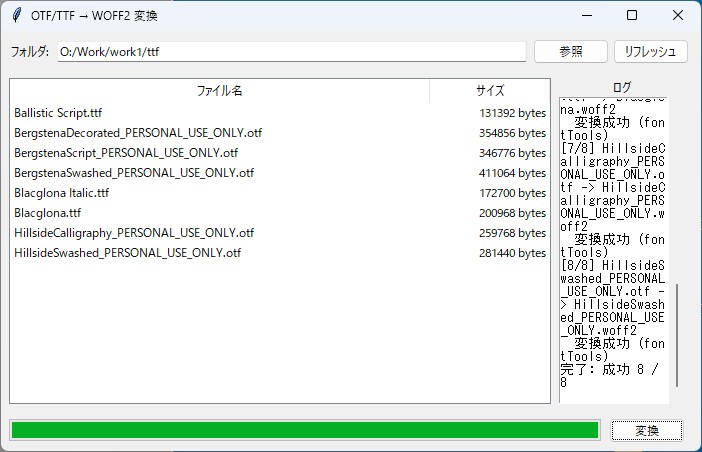
OTFフォント、TTFフォントが入ったフォルダーを指定して、「変換」ボタンを押すと、同じフォルダー内にWOFF2ファイルが出来る。複数ファイルがあれば、一括処理する。
【Pythonライブラリインストール】
次のライブラリが必要なので、インストールする。
pip install fonttools brotli
【Pythonプログラムコード】
"""
ttf_otf_to_woff2.py
Windows用のシンプルなGUIアプリ(tkinter)
OTF / TTF を同じフォルダ内に WOFF2 ファイルを生成します。

依存:
  pip install fonttools brotli
  ※fonttools が woff2 を出力するために brotli が必要です。
  もしそれでも失敗する場合は、Google の woff2 コマンドラインツールをインストールして
  パスに置くとフォールバックで利用します(woff2_compress)。

使い方:
  - アプリ起動 -> フォルダ選択 -> フォルダ内の .ttf/.otf を一覧表示
  - 変換 ボタンを押すと、同じフォルダに同名の .woff2 を作成します

注意:
  - 元のファイルは上書きされません(別拡張子の出力)
  - サブフォルダは探索しません(必要ならコードを拡張してください)

"""

import os
import threading
import subprocess
import shutil
import traceback
from tkinter import Tk, StringVar, LEFT, END, BOTH, YES, N, S, E, W
from tkinter import ttk, filedialog, messagebox, scrolledtext

try:
    from fontTools.ttLib import TTFont
except Exception:
    TTFont = None


def convert_font_with_fonttools(src_path, dst_path):
    """fontTools を使って .woff2 に変換する。"""
    if TTFont is None:
        raise RuntimeError("fontTools が import できません。pip install fonttools brotli を実行してください。")
    # fontTools はOTF/TTFどちらも読み込める
    font = TTFont(src_path)
    font.flavor = 'woff2'
    # 既存のファイルを上書きするために一時ファイルで保存してから移すのも良いが
    # ここでは直接保存する
    font.save(dst_path)


def convert_font_with_woff2_binary(src_path, dst_path):
    """woff2_compress(Googleのツール)を使って変換するフォールバック。
    woff2_compress <input> -> <input>.woff2
    ここでは出力パスを指定するため一旦標準出力の挙動に依存せず一時ファイルを作る。
    """
    woff2_cmd = shutil.which('woff2_compress') or shutil.which('woff2')
    if not woff2_cmd:
        raise RuntimeError('woff2_compress 実行ファイルが見つかりません。')
    # woff2_compress は通常 input -> input.woff2 を出すので、同じフォルダで実行する
    work_dir = os.path.dirname(src_path)
    try:
        # 実行: woff2_compress "src_path"
        subprocess.check_call([woff2_cmd, src_path], cwd=work_dir)
        produced = src_path + '.woff2'
        if not os.path.exists(produced):
            # 一部のビルドでは拡張子なし等の可能性があるが稀
            raise RuntimeError('woff2_compress は出力ファイルを生成しませんでした')
        # 移動(上書き)
        if os.path.abspath(produced) != os.path.abspath(dst_path):
            if os.path.exists(dst_path):
                os.remove(dst_path)
            shutil.move(produced, dst_path)
    except subprocess.CalledProcessError as e:
        raise RuntimeError(f'woff2_compress の実行が失敗しました: {e}')


class ConverterApp:
    def __init__(self, root):
        self.root = root
        root.title('OTF/TTF → WOFF2 変換')
        root.geometry('700x420')

        self.folder_var = StringVar()

        top_frame = ttk.Frame(root, padding=8)
        top_frame.pack(fill='x')

        ttk.Label(top_frame, text='フォルダ:').pack(side=LEFT)
        self.folder_entry = ttk.Entry(top_frame, textvariable=self.folder_var)
        self.folder_entry.pack(side=LEFT, fill='x', expand=True, padx=6)
        ttk.Button(top_frame, text='参照', command=self.browse_folder).pack(side=LEFT)
        ttk.Button(top_frame, text='リフレッシュ', command=self.refresh_list).pack(side=LEFT, padx=4)

        mid_frame = ttk.Frame(root, padding=(8, 6))
        mid_frame.pack(fill='both', expand=True)

        # ファイル一覧
        self.file_list = ttk.Treeview(mid_frame, columns=('name','size'), show='headings')
        self.file_list.heading('name', text='ファイル名')
        self.file_list.heading('size', text='サイズ')
        self.file_list.column('name', width=420)
        self.file_list.column('size', width=120, anchor='e')
        self.file_list.pack(fill='both', expand=True, side='left')

        # ログ
        right_frame = ttk.Frame(mid_frame)
        right_frame.pack(fill='y', side='left', padx=8)
        ttk.Label(right_frame, text='ログ').pack()
        self.log = scrolledtext.ScrolledText(right_frame, width=40, height=15, state='disabled')
        self.log.pack(fill='both', expand=True)

        bottom_frame = ttk.Frame(root, padding=8)
        bottom_frame.pack(fill='x')
        self.progress = ttk.Progressbar(bottom_frame, mode='determinate')
        self.progress.pack(fill='x', side='left', expand=True)
        ttk.Button(bottom_frame, text='変換', command=self.start_conversion).pack(side='left', padx=8)

        # 初期状態
        self.current_files = []

    def log_message(self, msg):
        self.log.config(state='normal')
        self.log.insert(END, msg + '\n')
        self.log.see('end')
        self.log.config(state='disabled')

    def browse_folder(self):
        d = filedialog.askdirectory()
        if d:
            self.folder_var.set(d)
            self.refresh_list()

    def refresh_list(self):
        folder = self.folder_var.get().strip()
        for i in self.file_list.get_children():
            self.file_list.delete(i)
        self.current_files = []
        if not folder or not os.path.isdir(folder):
            return
        for name in sorted(os.listdir(folder)):
            lname = name.lower()
            if lname.endswith('.ttf') or lname.endswith('.otf'):
                full = os.path.join(folder, name)
                try:
                    size = os.path.getsize(full)
                except Exception:
                    size = 0
                self.file_list.insert('', 'end', values=(name, f'{size} bytes'))
                self.current_files.append(full)

    def start_conversion(self):
        if not self.current_files:
            messagebox.showinfo('情報', '変換する TTF/OTF ファイルが見つかりません。')
            return
        # Run conversion in background thread to keep UI responsive
        t = threading.Thread(target=self.convert_all)
        t.daemon = True
        t.start()

    def convert_all(self):
        total = len(self.current_files)
        self.progress['maximum'] = total
        self.progress['value'] = 0
        success = 0
        for idx, src in enumerate(self.current_files, start=1):
            try:
                base, _ = os.path.splitext(src)
                dst = base + '.woff2'
                self.log_message(f'[{idx}/{total}] {os.path.basename(src)} -> {os.path.basename(dst)}')
                # 既に出力ファイルがある場合はスキップまたは上書き(ここでは上書き)
                if os.path.exists(dst):
                    self.log_message('  既に存在するため上書きします。')
                    try:
                        os.remove(dst)
                    except Exception as e:
                        self.log_message(f'  既存ファイルの削除に失敗: {e}')
                # まず fonttools を試す
                try:
                    convert_font_with_fonttools(src, dst)
                    self.log_message('  変換成功 (fontTools)')
                    success += 1
                except Exception as e1:
                    self.log_message(f'  fontTools で失敗: {e1}')
                    # フォールバックで woff2_compress が使えるか試す
                    try:
                        convert_font_with_woff2_binary(src, dst)
                        self.log_message('  変換成功 (woff2_compress)')
                        success += 1
                    except Exception as e2:
                        self.log_message(f'  woff2_compress でも失敗: {e2}')
                        self.log_message('  ----- 変換失敗の詳細 -----')
                        tb = traceback.format_exc()
                        self.log_message(tb)
                finally:
                    self.progress['value'] = idx
            except Exception as e:
                self.log_message(f'予期しないエラー: {e}')
                tb = traceback.format_exc()
                self.log_message(tb)
        self.log_message(f'完了: 成功 {success} / {total}')
        messagebox.showinfo('完了', f'変換処理が終わりました。成功 {success} / {total}')
        # 更新して結果を反映
        self.refresh_list()


if __name__ == '__main__':
    root = Tk()
    app = ConverterApp(root)
    root.mainloop()