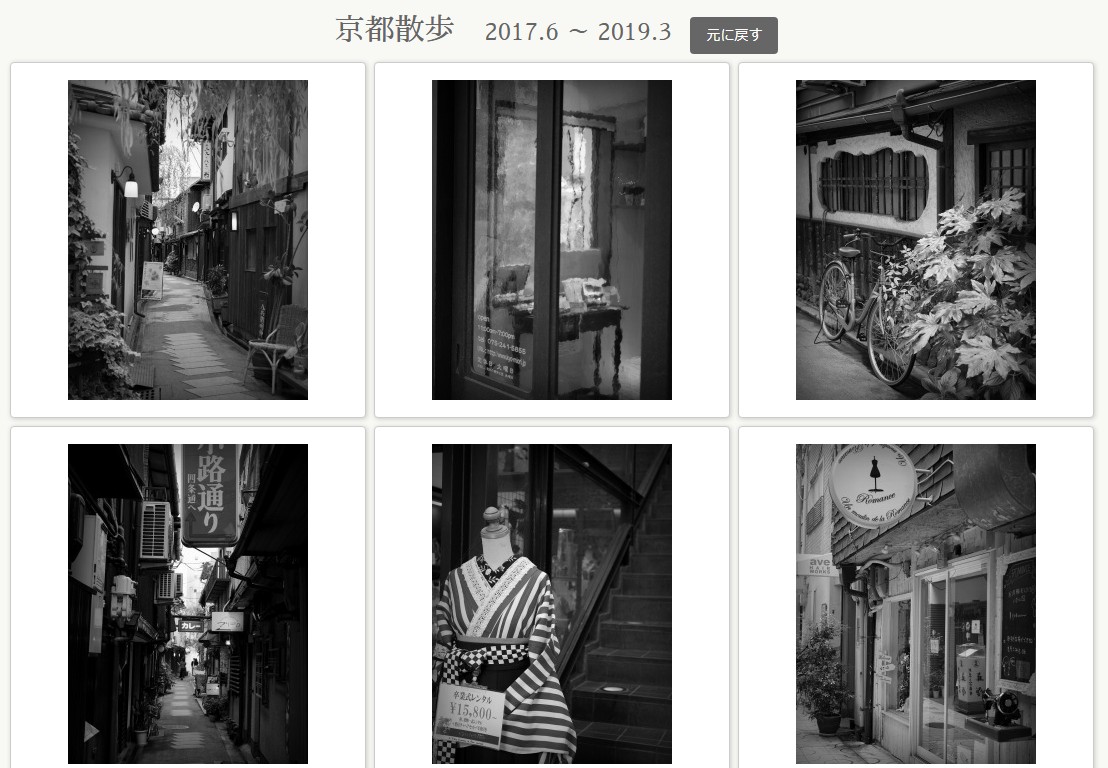
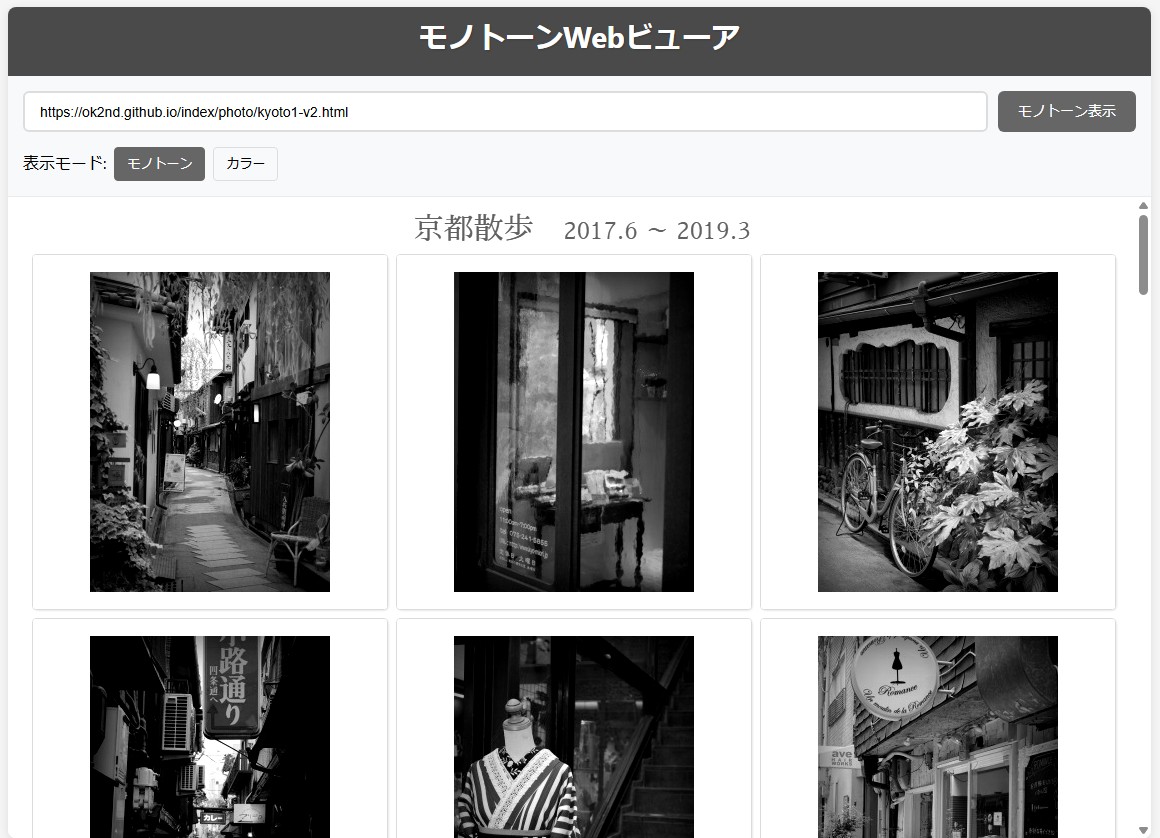
JavaScript)既存のWebページに、画像モノトーン(モノクロ)表示機能追加。CSS Filter grayscale(100%) 使用。
既存のWebページに、画像モノトーン表示機能を追加するJavaScriptを作成。Claudeで作成。
≪ 利用例:モノトーン表示機能追加サンプル ≫
https://ok2nd.github.io/index/photo/kyoto1-v2.html

≪ JavaScript ソースコード:CSS Filter grayscale(100%) 使用版 ≫
上記サンプルページでは、「js/monotone-css.js」として読み込んでいる。
このJavaScriptでは、Webページ内に<h1>~<h5>のヘッダーを検索して、そこに「モノトーン」ボタンを追加するようにしている。「モノトーン」ボタンを押すことでページ内の画像をモノトーン表示する。モノトーン表示するのは画像データのみに限定。モノトーン表示後は、「元に戻す」ボタンでカラー表示に戻る。
(function() {
	let isMonotone = false;
	const MONOTONE_CLASS = 'monotone-filter';
	// CSSスタイルを追加
	function addFilterStyles() {
		const style = document.createElement('style');
		style.textContent = `
			.${MONOTONE_CLASS} {
				filter: grayscale(100%);
				transition: filter 0.3s ease;
			}
			#monotone-toggle-btn {
				background-color: #333;
				color: white;
				border: none;
				padding: 8px 16px;
				margin: 0 10px;
				border-radius: 4px;
				cursor: pointer;
				font-size: 14px;
				transition: background-color 0.3s;
			}
			#monotone-toggle-btn:hover {
				background-color: #555;
			}
			#monotone-toggle-btn:disabled {
				opacity: 0.6;
				cursor: not-allowed;
			}
			#monotone-toggle-btn.active {
				background-color: #666;
			}
		`;
		document.head.appendChild(style);
	}
	// モノトーンボタンを作成
	function createMonotoneButton() {
		const button = document.createElement('button');
		button.id = 'monotone-toggle-btn';
		button.textContent = 'モノトーン';
		// クリックイベント
		button.addEventListener('click', toggleMonotone);
		return button;
	}
	// モノトーン切り替え
	function toggleMonotone() {
		const button = document.getElementById('monotone-toggle-btn');
		const images = document.querySelectorAll('img');
		if (!isMonotone) {
			// モノトーンに変換
			images.forEach(img => {
				img.classList.add(MONOTONE_CLASS);
			});
			button.textContent = '元に戻す';
			button.classList.add('active');
			isMonotone = true;
		} else {
			// 元に戻す
			images.forEach(img => {
				img.classList.remove(MONOTONE_CLASS);
			});
			button.textContent = 'モノトーン';
			button.classList.remove('active');
			isMonotone = false;
		}
	}
	// 動的に追加された画像にも対応
	function applyToNewImages() {
		if (isMonotone) {
			const images = document.querySelectorAll('img:not(.monotone-filter)');
			images.forEach(img => {
				img.classList.add(MONOTONE_CLASS);
			});
		}
	}
	// MutationObserverで新しい画像の追加を監視
	function observeImageChanges() {
		const observer = new MutationObserver(mutations => {
			mutations.forEach(mutation => {
				if (mutation.type === 'childList') {
					mutation.addedNodes.forEach(node => {
						if (node.nodeType === Node.ELEMENT_NODE) {
							// 追加されたノードが画像の場合
							if (node.tagName === 'IMG') {
								if (isMonotone) {
									node.classList.add(MONOTONE_CLASS);
								}
							}
							// 追加されたノード内の画像をチェック
							const images = node.querySelectorAll && node.querySelectorAll('img');
							if (images && isMonotone) {
								images.forEach(img => {
									img.classList.add(MONOTONE_CLASS);
								});
							}
						}
					});
				}
			});
		});
		observer.observe(document.body, {
			childList: true,
			subtree: true
		});
	}
	// ページ読み込み後にボタンを追加
	function addButtonToPage() {
		// CSSスタイルを追加
		addFilterStyles();
		// h1?h5タグを検索
		const headings = document.querySelectorAll('h1, h2, h3, h4, h5');
		if (headings.length > 0) {
			// 最初の見出しタグにボタンを追加
			const firstHeading = headings[0];
			const button = createMonotoneButton();
			// 見出しの後にボタンを追加
			firstHeading.appendChild(document.createTextNode(' '));
			firstHeading.appendChild(button);
		} else {
			console.warn('h1?h5タグが見つかりません。bodyの先頭にボタンを追加します。');
			// 見出しがない場合はbodyの先頭に追加
			const button = createMonotoneButton();
			document.body.insertBefore(button, document.body.firstChild);
		}
		// 動的な画像追加を監視
		observeImageChanges();
	}
	// DOMが読み込まれたら実行
	if (document.readyState === 'loading') {
		document.addEventListener('DOMContentLoaded', addButtonToPage);
	} else {
		addButtonToPage();
	}
})();
≪ JavaScript ソースコード:CSS Filter 未使用版≫
https://ok2nd.github.io/index/photo/kyoto1-v2-2.html
このサンプルページでは、「js/monotone.js」として読み込んでいる。
こちらのJavaScriptでは、CSS Filter grayscale(100%) を使用せず、Canvas APIを使用している。こちらの方が処理速度が遅い。お勧めできない。
(function() {
let isMonotone = false;
let originalImages = new Map(); // 元の画像データを保存
// モノトーンボタンを作成
function createMonotoneButton() {
	const button = document.createElement('button');
	button.id = 'monotone-toggle-btn';
	button.textContent = 'モノトーン';
	button.style.cssText = `
		background-color: #333;
		color: white;
		border: none;
		padding: 8px 16px;
		margin: 0 10px;
		border-radius: 4px;
		cursor: pointer;
		font-size: 14px;
		transition: background-color 0.3s;
	`;
	// ホバー効果
	button.addEventListener('mouseenter', function() {
		this.style.backgroundColor = '#555';
	});
	button.addEventListener('mouseleave', function() {
		this.style.backgroundColor = isMonotone ? '#666' : '#333';
	});
	// クリックイベント
	button.addEventListener('click', toggleMonotone);
	return button;
}
// 画像をモノトーンに変換
function convertToMonotone(img) {
	return new Promise((resolve, reject) => {
		// 元の画像を保存
		if (!originalImages.has(img)) {
			originalImages.set(img, img.src);
		}
		const canvas = document.createElement('canvas');
		const ctx = canvas.getContext('2d');
		// 画像が読み込まれてから処理
		const processImage = () => {
			canvas.width = img.naturalWidth || img.width;
			canvas.height = img.naturalHeight || img.height;
			// 画像をcanvasに描画
			ctx.drawImage(img, 0, 0);
			// 画像データを取得
			const imageData = ctx.getImageData(0, 0, canvas.width, canvas.height);
			const data = imageData.data;
			// グレースケール変換
			for (let i = 0; i < data.length; i += 4) {
				const gray = data[i] * 0.299 + data[i + 1] * 0.587 + data[i + 2] * 0.114;
				data[i] = gray;	 // R
				data[i + 1] = gray; // G
				data[i + 2] = gray; // B
				// data[i + 3] はアルファ値なのでそのまま
			}
			// 変換後の画像データをcanvasに戻す
			ctx.putImageData(imageData, 0, 0);
			// Data URLに変換
			const dataURL = canvas.toDataURL();
			img.src = dataURL;
			resolve();
		};
		if (img.complete && img.naturalWidth > 0) {
			processImage();
		} else {
			img.addEventListener('load', processImage);
			img.addEventListener('error', reject);
		}
	});
}
// 画像を元に戻す
function restoreOriginal(img) {
	if (originalImages.has(img)) {
		img.src = originalImages.get(img);
	}
}
// モノトーン切り替え
async function toggleMonotone() {
	const button = document.getElementById('monotone-toggle-btn');
	const images = document.querySelectorAll('img');
	// ボタンの状態を更新
	button.disabled = true;
	button.textContent = isMonotone ? 'モノトーン' : '元に戻す';
	if (!isMonotone) {
		// モノトーンに変換
		const promises = Array.from(images).map(img => {
			// エラーハンドリング付きで変換
			return convertToMonotone(img).catch(err => {
				console.warn('画像の変換に失敗しました:', img.src, err);
			});
		});
		await Promise.all(promises);
		button.style.backgroundColor = '#666';
		isMonotone = true;
	} else {
		// 元に戻す
		images.forEach(restoreOriginal);
		button.style.backgroundColor = '#333';
		isMonotone = false;
	}
	button.disabled = false;
}
// ページ読み込み後にボタンを追加
function addButtonToPage() {
	// h1~h5タグを検索
	const headings = document.querySelectorAll('h1, h2, h3, h4, h5');
	if (headings.length > 0) {
		// 最初の見出しタグにボタンを追加
		const firstHeading = headings[0];
		const button = createMonotoneButton();
		// 見出しの後にボタンを追加
		firstHeading.appendChild(document.createTextNode(' '));
		firstHeading.appendChild(button);
	} else {
		console.warn('h1~h5タグが見つかりません。bodyの先頭にボタンを追加します。');
		// 見出しがない場合はbodyの先頭に追加
		const button = createMonotoneButton();
		document.body.insertBefore(button, document.body.firstChild);
	}
}
// DOMが読み込まれたら実行
if (document.readyState === 'loading') {
	document.addEventListener('DOMContentLoaded', addButtonToPage);
} else {
	addButtonToPage();
}
})();

神戸散歩 2017.5 ~ 2019.3影付き枠+ビネット効果付き写真サムネイルアルバムok2nd.github.io
大阪散歩 2017.6 ~ 2019.3影付き枠+ビネット効果付き写真サムネイルアルバムok2nd.github.io


何気ないものを撮ってみた。モノクロ&カラー。OLYMPUS Tough TG-5。何気ないものを撮ってみた。カメラは、OLYMPUS Tough TG-5。晴歩雨描 · 

